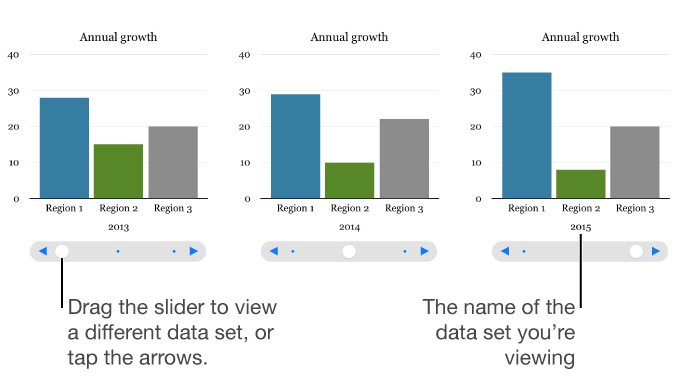

An interactive chart presents data in stages so that you can emphasize the relationship between groups of data. You can use an interactive chart to show data like sales by group over time, expenses by department, and population changes by country per continent. The example below shows the growth of three species during a three-year period.
You can interact with the chart using a slider and buttons or buttons only.
Tap  , tap
, tap  , then tap Interactive.
Tap a chart to add it, then drag it to where you want it on the sheet.
Tap to add data to the chart, then select the table cells with the data you want to use. Or, to add data from an entire row or column, tap the table, then tap the number or letter for that row or column.
You can select cells in one or more tables, including tables on different sheets. While editing a chart’s data references, an icon appears on the tab for any sheet that contains data used in the chart.
To change whether rows or columns are plotted as data series, tap  in the toolbar, then tap an option.
The data series are always plotted in the interactive chart, but each data set is displayed separately.
Tap Done in the toolbar.
In an interactive chart, you can switch between the different data sets using a slider and buttons or buttons only. You choose the controls for switching between data sets.
Tap the chart, tap  .
.
Tap Chart, then tap Chart Options.
Tap Interactive Chart, then tap Slider and Buttons or Buttons Only.