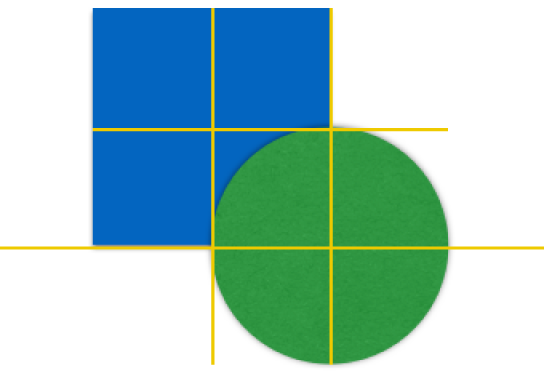

Use alignment and spacing guides to help you place objects precisely. When guides are turned on, they appear as you drag an object on a sheet in alignment with, or equidistant to, another object. You can turn the guides off and on as needed.
Tap  , then tap Settings.
Tap Guides, then tap to turn on a guide.
Center Guides: Appear when an object’s center aligns with another object or the center of the sheet.
Edge Guides: Appear when an object’s edges align with the edges of another object.
Spacing Guides: Indicate when three or more objects are placed equally apart in a line.
You can nudge an object to move it by single-point increments.
Touch and hold the object with one finger, then use another finger to swipe anywhere on the sheet, in the direction you want the object to move.
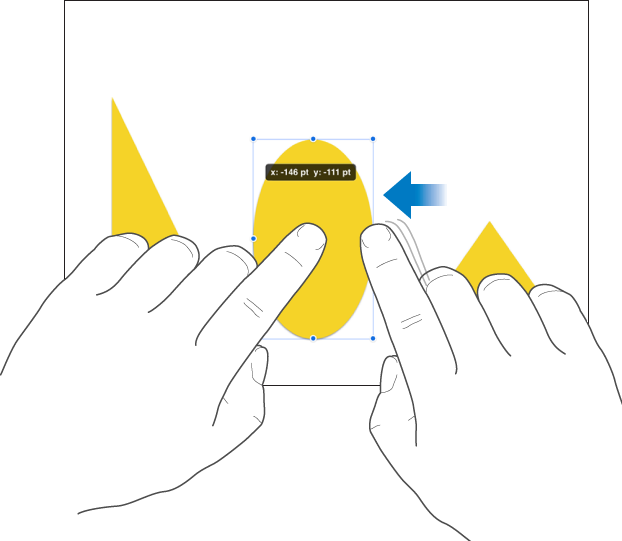
As you swipe, you can see the object’s position changing by single-point increments. Swipe with two, three, four, or five fingers to nudge the object by 10, 20, 30, or 40 points, respectively.
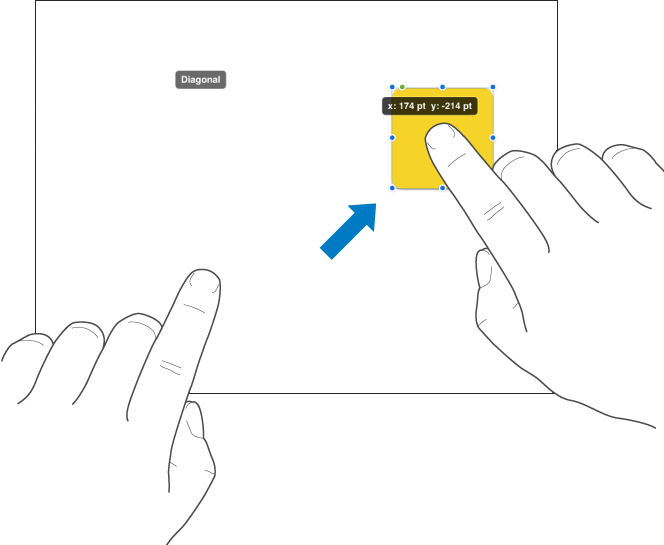
You can constrain an object’s movement as you drag so it moves in a straight line.
Touch and hold one finger anywhere on the screen while you drag the object across a sheet using one finger on your other hand.
You can drag an object horizontally, vertically, or diagonally (at a 45-degree angle).