Add a shape
Tap
 , then tap
  .
.Tap a shape to add it.
Swipe right or left to see more shape styles.

After you add a shape to a sheet, you can customize the shape in a number of ways. For example, you can change the standard five-point star into a twenty-point starburst, adjust how rounded the corners of a square are, add text inside a shape, and more.
Tap , then tap .
Tap a shape to add it.
Swipe right or left to see more shape styles.
You can create a straight or curved line, then customize its appearance by changing its width (thickness) or color, or adding different endpoints—for example, an arrow, circle, or square.
Tap , then tap .
Drag the line to move it.
Drag the handles (the blue dots) to change the line length and rotation.
For curved lines, drag the green dot to change the arc.
Tap  , then tap a line style at the top of the pane to change its appearance. Or, tap Style Options to make any of the following adjustments:
Color: Tap the color well to choose a color.
Width: Drag the slider to change the line thickness.
Endpoints: Tap Arrowheads, then tap your choice for the left endpoint and right endpoint.
Line type: Tap an option from the bottom of the list.
Double-tap the shape to make the insertion point appear, then type your text.
If there’s too much text to display in the shape, a clipping indicator (+) appears. To resize the shape, tap it, then drag any selection handle until all the text is showing.
To change the appearance of the text inside a shape, select the text, then tap . Tap Style, then use the controls to change the text.
You can change the features of any predrawn shape in specific ways.
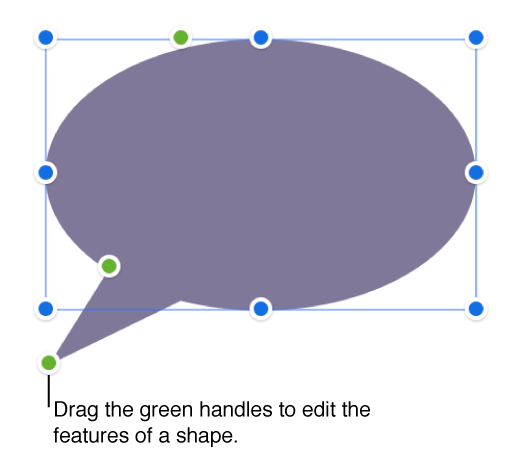
Tap the shape, then do any of the following:
Reshape the corners of a rounded square: Drag the green handle toward a corner to sharpen it, or away from a corner to make it more round.
Change the number of points on a star: Drag the outer green handle clockwise or counterclockwise to add or remove points. A star can have between three and twenty points.
Change the shape of the points on a star: Drag the inner green handle toward the center of the star to make the points long and narrow, or drag the handle away from the center to make the points shorter and wider.
Change the shape of a callout or speech bubble: Drag the green handle on the body of the bubble to reshape it. Drag the green handle at the tip of the point to change its length and position. Drag the green handle at the base of the point to change its width.
Change the number of sides in a pentagon: Drag the green handle clockwise or counterclockwise to adjust the number of sides.
Adjust the proportions of arrows: Drag the green handle toward the tip of the arrow to make the arrowhead shallower, or drag toward the side point of the arrow to make the arrow’s trunk thicker.