
Selecting the Crop tool activates canvas controls to resize the borders of a layer.

Note: The Crop tool is not available for layers within a 360° environment.
Cropping lets you chop off any of the four edges of a layer to eliminate parts you don’t want to see in your composition. Common examples of layers you’d want to crop are video clips with a black line or unwanted vignetting around the edges. The crop operation can remove these undesirable artifacts. A layer might also be cropped to isolate a single element of the image.
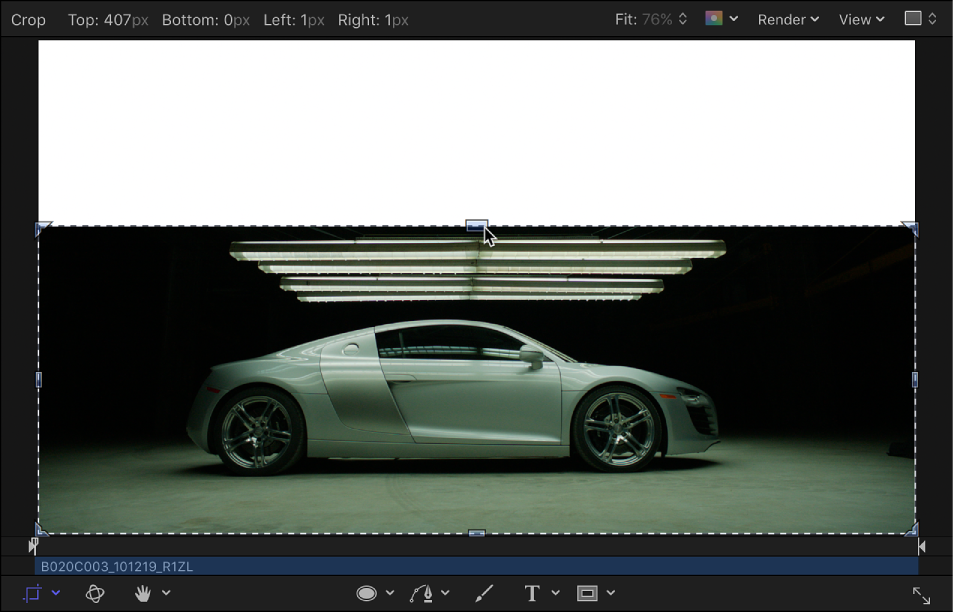
When you crop an imported image using the Crop tool (which yields the same result as using the Crop controls in the layer’s Properties Inspector), only the instance of that file is cropped. The source image in the Media list is not cropped. To crop the source image, you must select the layer in the Media list, then use the Crop controls in the Media Inspector. For more information, see Source media controls in the Media Inspector.
Note: If you must isolate a more irregularly shaped layer, or you want to create a border of a specific shape, see Shapes, masks, and paint strokes overview.
Select a layer in the Layers list or canvas.
A bounding box appears around the selected layer in the canvas.
In the canvas toolbar, click and hold the transform tools pop-up menu, then choose Crop.
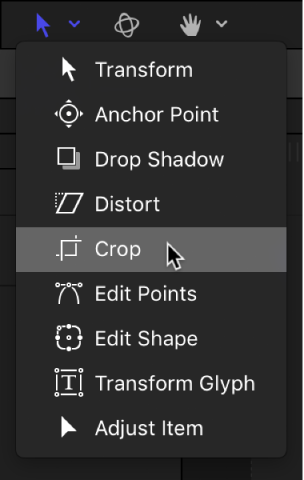
In the canvas, a bounding box with eight crop handles appears around the selected layer.
Do any of the following:
Crop one edge: Drag the top, left, right, or bottom handle.
Crop two adjacent edges: Drag a corner handle.
Maintain the same aspect ratio while cropping: Press and hold the Shift key while dragging a handle.
The ratio between the layer’s width and height is preserved.
Note: If a layer is modified with the Distort tool, the Crop tool and its onscreen controls become disabled. However, you can still crop a distorted layer by adjusting its Crop parameter settings in the Properties Inspector.
The Crop parameters are updated in the Properties Inspector.
Drag inside the crop area.
The crop area moves, allowing you to adjust the crop to a new location without changing its size or shape.
Press and hold the Command key while dragging inside the crop area.
The crop area remains static, but the image underneath it moves, allowing you to change the visible area of the layer.