
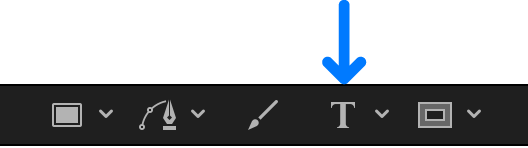
After you add text to Motion, you can select and edit text directly in the canvas. To select text characters for modification, use the Text tool.
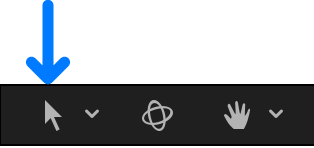
To select text as an object, use the Select/Transform tool.
Do one of the following:
In the canvas toolbar, select the Text tool, then drag within the text in the canvas.
If you don’t begin the drag within existing text, a new text object is created.
In the canvas toolbar, select the Text tool, click between two text characters in the canvas, press and hold the Shift key, then press the Right Arrow key or the Left Arrow key to select characters.
In the canvas toolbar, click the Select/Transform tool, then double-click text in the canvas.
In the Layer’s list, select a text layer, then in the Text editor (at the bottom of the Text Inspector’s Format pane), drag within or double-click text.
With the Text tool selected, click text in the canvas.
Do any of the following:
Move the text insertion point: Press the Right Arrow or Left Arrow key.
Jump to the beginning of a text line: Press Control-Left Arrow.
Jump to the end of a text line: Press Control-Right Arrow.
Jump to the beginning of the word: Press Option-Left Arrow.
Jump to the end of the word: Press Option-Right Arrow.
Move the insertion point through multiple lines of text (for a single text object): Press the Up Arrow key or the Down Arrow key.
Note: Some keyboard shortcuts are affected by macOS Mission Control. For more information, see Mac Help.
Select text in the canvas, then begin typing.
The selected text is replaced by the new text.
In the canvas, do one of the following:
Double-click a word, then press Delete.
Click at the end of a word, then press Option-Delete.