
You can view your 360° project using a VR headset attached to your Mac.
Important: Using a VR headset with Motion requires macOS 10.13 or later, minimum hardware, and the installation of a third-party app. For details, see Motion Tech Specs.
For more information about setting up a VR headset and about supported hardware, see Use a VR headset with Final Cut Pro X and Motion.
If you have a VR headset connected to your Mac (and properly configured), you can use it to view the output of your Motion project.
Connect a VR headset to your Mac.
For setup instructions, see Use a VR headset with Final Cut Pro X and Motion.
Choose Window > Output to VR Headset (or press F10).
The 360° video appears in the VR Headset display.
Note: The VR headset does not work in non-360° Motion projects.
Put the headset on, then rotate your head and look in any direction.
As you move and rotate your head to navigate the 360° video, the headset display updates.
Note: To play back your project in the VR headset, Mirror VR Headset must be enabled.
Do one of the following:
In the canvas, click the Camera pop-up menu, then choose Mirror VR Headset.
Choose View > 3D View > Mirror VR Headset (or press Control-H).
The 360° video appears in the VR headset display and is mirrored in the 360° Look Around view in Motion. Whatever part of the sphere is currently displayed in the VR headset appears in the canvas.
Because the forward orientation of the headset can change, you may want to reset the headset’s orientation.
Note: Resetting the headset’s orientation works only when the headset display is mirrored in the canvas.
With the headset on, look in the direction that you consider to be the default orientation, then in Motion do one of the following:
Choose Reset VR Headset Orientation from the camera menu in the canvas.
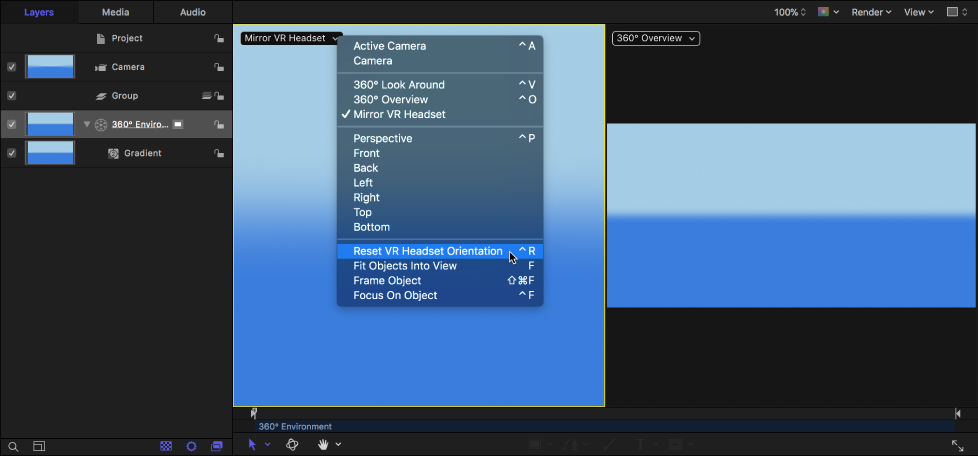
Choose View > 3D View > Reset VR Headset Orientation (or press Control-R).
The view inside the VR headset is reoriented.
Note: Changing the orientation of the headset only temporarily changes the view—no permanent change to the default orientation of the media occurs.