
You can add 3D text to your project using the 3D Text tool.
Do one of the following:
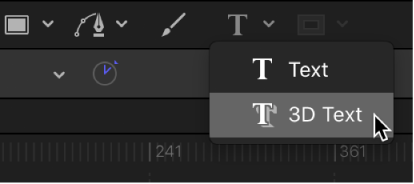
In the canvas toolbar, click and hold the Text tool, then choose 3D Text from the pop-up menu.
Press the T key twice (pressing T once activates the basic Text tool, and pressing T again activates the 3D Text tool).
Click anywhere in the canvas to create an insertion point, then begin typing.
Tip: You can also choose the 3D Text tool, then drag in the canvas to create a paragraph-style text-entry field with adjustable margins. For more information, see Add paragraph-style text with margins that wrap.
The 3D text appears in the canvas. By default, newly created 3D text objects are given a smooth, white plastic appearance. To give basic 3D text a more dynamic look, you can quickly apply one of the ready-made 3D text styles that come with Motion. These preset text styles artfully combine font, depth, and texture settings. Or, if you want to create a custom look, you can apply textures and finishes available in the Motion Library.