
When constructing your template, you can disable drop zones so you don’t accidentally apply media. Later, when using the template, you can turn drop zones back on.
You can also use the expose feature in Motion to reveal obscured drop zones in the canvas. The expose command shows an exploded view of valid drop zones in the canvas.
Choose View > Use Drop Zones.
A checkmark appears next to the menu item when drop zones are enabled (which means they accept objects dragged to them). When no checkmark appears next to the menu item, drop zones are disabled (which means they ignore objects dragged to them).
Do one of the following:
In the toolbar, click Import, and then in the dialog that appears, navigate to the item you want to import.
In the Library or macOS Finder, navigate to the item you want to import.
While holding down the Command key, drag the item onto the canvas.
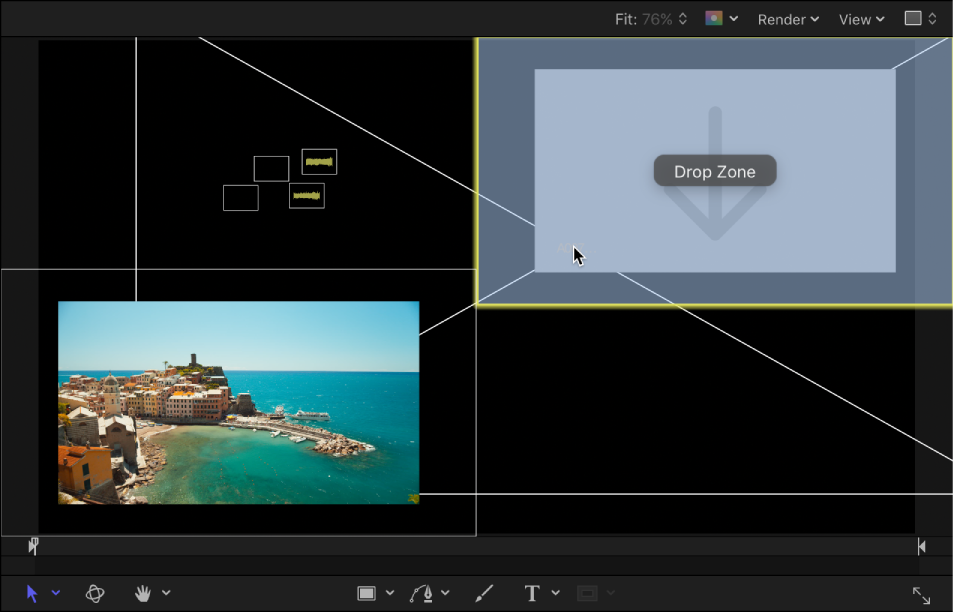
Objects in the canvas shrink and separate in an exploded view so you can see them all. Moving the pointer over an object reveals its Layers list name.
Note: You cannot Command-drag non-image objects (shapes, Motion projects, particles, and so on) to the canvas.
Release the mouse button to drop the object onto its target.
The object replaces its target, and the canvas view returns to normal.