
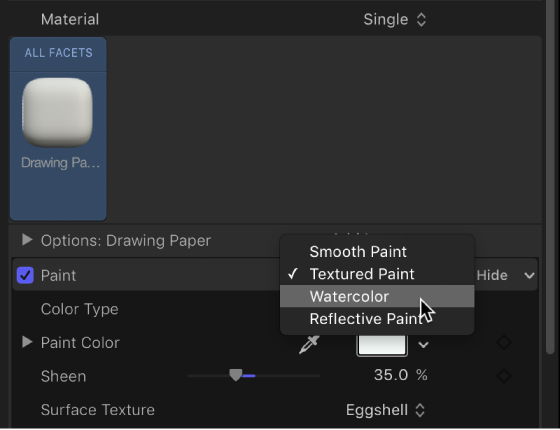
Use the Paint controls in the Appearance pane of the Text Inspector to simulate a coat of paint on the 3D text object. Depending on the option you choose in the Paint pop-up menu (at the top of the Paint section of the Appearance pane), different parameter controls become available.
Paint: A pop-up menu to set a paint type: Smooth Paint, Textured Paint, Watercolor, or Reflective Paint.

Color Type: A pop-up menu to choose whether the paint is a solid color or a gradient. For information on using gradients, see Gradient editor overview.
Paint Color: A color control (available when Color Type is set to Color) to set the color of the paint.
Paint Gradient: A gradient control (available when Color Type is set to Gradient) to set a preset gradient or create a custom gradient.
Sheen: A slider to adjust the apparent shininess of the paint surface.
Opacity: A slider to adjust the visibility of the paint. Drag to the left to make the paint more transparent; drag to the right to make it more opaque.

Color Type: A pop-up menu to choose whether the paint is a solid color or a gradient. For information on using gradients, see Gradient editor overview.
Paint Color: A color control (available when Color Type is set to Color) to set the color of the paint.
Paint Gradient: A gradient control (available when Color Type is set to Gradient) to set a preset gradient or create a custom gradient.
Sheen: A slider to adjust the apparent shininess of the paint surface.
Surface Texture: A pop-up menu to apply a texture.
Texture Depth: A slider to adjust the visibility of the texture on the surface of the 3D text object.
Opacity: A slider to adjust the visibility of the paint. Drag to the left to make the paint more transparent; drag to the right to make it more opaque.
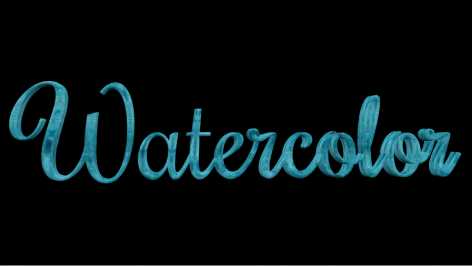
Paint Color: A color control (available when Color Type is set to Color) to set the color of the paint.
Sheen: A slider to adjust the apparent shininess of the paint surface.
Opacity: A slider to adjust the visibility of the paint. Drag to the left to make the paint more transparent, or drag to the right to make it more opaque.
Placement: A group of controls (available when you click the disclosure triangle) to set how the watercolor pattern is applied to the text object. For details, see Placement controls.

Paint Job: A pop-up menu to select the type of reflective paint (Velvet, Pearl, Electric, and so on)
Paint Color: A color control to set the color of the reflective paint.
Second Color: Some Paint Job types use a second color. Use this color control to set that second color.
Sheen: A slider to adjust the apparent shininess of the paint surface.
Diffuse Brightness: A slider (available when Paint Job is set to Custom) to set the amount of color reflected by the text object.
Specular Brightness: A slider (available when Paint Job is set to Custom) to set the amount of light reflected by the text object.
Shininess: A slider (available when Paint Job is set to Custom) to set how mirror-like the surface appears.
Face Opacity: A slider (available when Paint Job is set to Custom) to set how transparent the paint effect is on surfaces that are more perpendicular to the camera.
Edge Opacity: A slider (available when Paint Job is set to Custom) to set how transparent the paint effect appears on surfaces that are more parallel to the camera.
Opacity: A slider to adjust the visibility of the paint. Drag to the left to make the paint more transparent; drag to the right to make it more opaque.
Fresnel: A slider (available when Paint Job is set to Custom) to set the amount that a change in viewing angle impacts the reflectiveness of the object. A high Fresnel value means that there’s a strong change in reflectivity as the viewing angle changes; a low Fresnel value means that the reflectivity remains relatively consistent regardless of viewing angle.