
The Track behavior (in the Parameter category of behaviors) lets you track a position parameter of an object. For example, you can track the center of a Light Rays filter to a moving light in a clip.
Note: This behavior applies only to filters with position parameters, such as Scrape, Ring Warp, Light Rays, Slit Tunnel, and so on.
For a full description of adjustable controls in the Track behavior, see Track controls.
Apply a filter to layer in your project.
For more information, see Apply and remove filters.
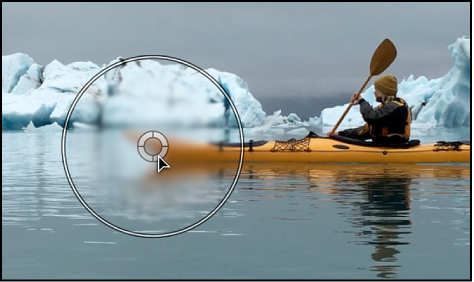
In the canvas, drag the center point of the filter to the region of the layer (a video clip or animated shape) you want to track.
In the Filters Inspector, Control-click the Center parameter, then choose Add Parameter Behavior > Track from the shortcut menu.
In the canvas, the filter’s onscreen control is replaced with a tracker. The Behaviors Inspector becomes active, and the Track behavior parameters are displayed.
Note: In the Filters Inspector, a behavior icon (a gear) appears next to the Center parameter, indicating that it’s influenced by a behavior.
If necessary, adjust the tracker in the canvas. If the reference pattern you want to track is offset from the center of the filter, use the Offset Track checkbox. For more information on using the Offset Track parameter, see Track obscured or off-frame points.
Click the Analyze button in the Behaviors Inspector or HUD.
The filter’s center is tracked to the clip. You can make changes to the filter parameters after the analysis is performed.