
The methods used to adjust Bezier shapes are similar to those used by many other applications. Each point in a Bezier shape can be converted from a hard corner to a curve.
For all of the following procedures, the Edit Points tool (in the transform tools pop-up menu in the canvas toolbar) must be selected.
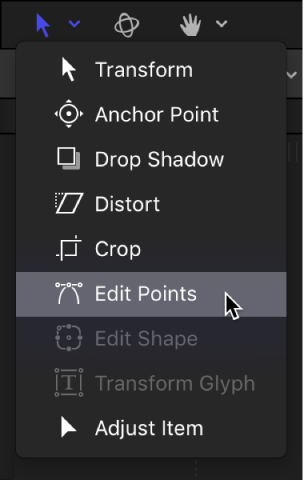
Do one of the following:
Command-click a curved point to turn it into a corner (Linear) point.
Command-drag a corner point to turn it into a curved (Bezier) point, creating adjustable tangent handles.
Control-click selected points, then choose Linear or Smooth from the shortcut menu to change the control point type.
Curved Bezier control points have two tangent handles that you use to adjust the curvature of the shape on either side of the control point. These handles can be adjusted in various ways to create symmetrical and asymmetrical curves. By default, these tangent handles are locked to one another at an angle of 180 degrees, but you can override this restriction to adjust each tangent handle independently.
In the canvas, select a Bezier point.
Two tangent handles appear over the point.
Do any of the following:
Adjust a tangent handle’s length or angle: Drag the tangent handle.
The Bezier curve is pulled or twisted in the direction you drag. By default, the opposing tangent handle is locked to 180 degrees, and adjusting the angle of one tangent handle adjusts the other. However, you can adjust the length of each tangent handle independently.
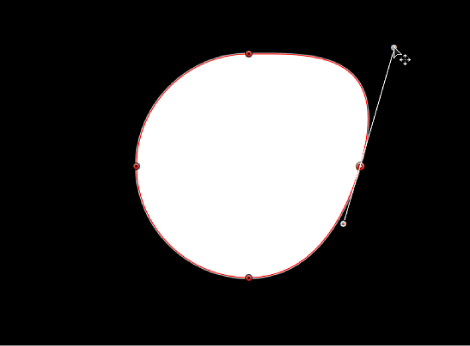
Break a tangent handle to adjust side each separately: Option-drag the tangent handle; or Control-click it, then choose Break Handle from the shortcut menu.
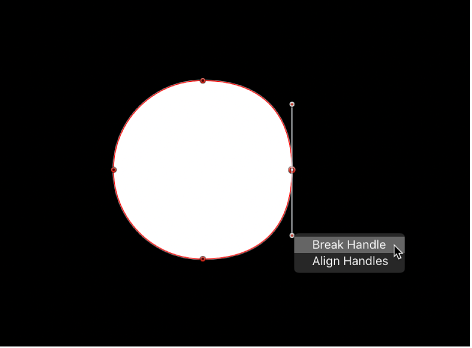
After this relationship is broken, adjustments to one tangent handle have no effect on the other, and you can rotate both tangent handles independently.
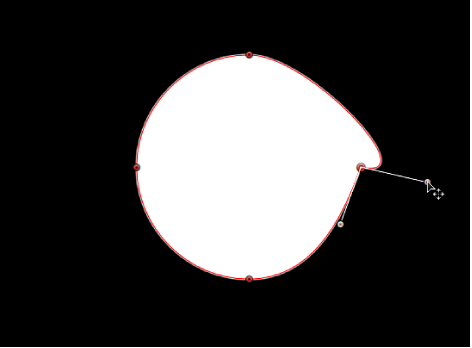
Lock broken tangent handles to a custom angle: Option-drag a broken tangent handle point; or Control-click it and choose Link Handle from the shortcut menu.
The tangent handles now maintain their relationship when moved and rotated. You can also press and hold the Command key while dragging a handle point so that two tangent handles with differing lengths scale proportionally.
Restore broken tangent handles to their default alignment: Control-click a broken tangent handle point and choose Align Handles from the shortcut menu to align the tangent handles to a 180-degree angle.
Press and hold the Shift key while you adjust a tangent handle to constrain its movement to 45-degree angles. To simultaneously modify the handles for more than one control point, Shift-select the points (on the same spline) and then adjust the tangent handles.
Important: If the Record button (in the timing toolbar) is enabled, curve adjustments are keyframed, creating animated shape changes. Additionally, if a keyframe has been added to the Control Points parameter in the Geometry pane of the Shape Inspector, curve adjustments are keyframed, regardless of the Record button state.