
Typically the Width Over Stroke settings are controlled by a mini-curve editor in the Stroke pane of the Shape Inspector. However, you can also adjust Width Over Stroke values by dragging in the canvas.
Note: The Width Over Stroke settings are only available when Brush Type is set to Airbrush or Image in the Style pane of the Shape Inspector.
In the canvas, Control-click the paint stroke, then choose Stroke from the shortcut menu.
Small control points (+) appear at along the red spline.
Click the control point that you want to adjust.
Handles appear on either side of the control point.
To increase the width of the dabs, drag a handle away from the point; to decrease the width of the dabs, drag toward the point.
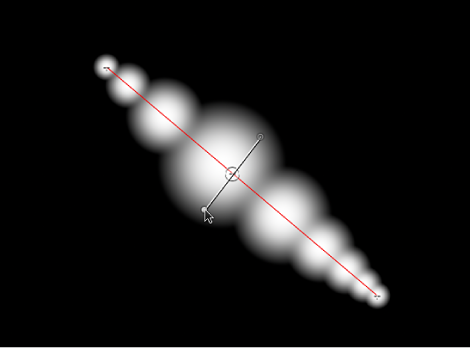
To change the position of a control, drag the control point to the left to move the point toward the stroke’s origin; drag the control point to the right to move the point toward the stroke’s end. (Points can be dragged over one another.)
To add width controls, Option-click the red spline.
To delete width controls, select a control point, then press Delete.