
If you didn’t create enough control points to make the complex shape you need, you can add more to the existing shape. You can also extend or close an open shape.
For all of the following procedures, the Edit Points tool (in the transform tools pop-up menu in the canvas toolbar) must be selected.
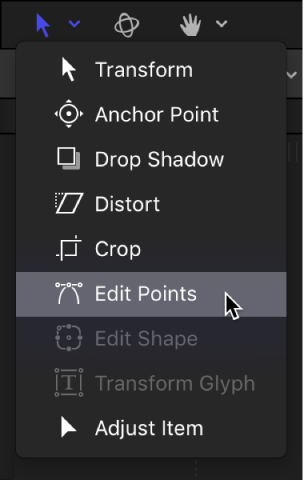
Do one of the following:
Option-click or double-click the edge of a shape to add a new control point.
Note: To add control points to a B-Spline shape, Option-click or double-click the B-Spline frame’s edge, rather than the edge of the shape itself.
Control-click the edge of a shape, then choose Add Point from the shortcut menu.
Option-click anywhere outside the shape to add control points to the end of the shape.
Do one of the following:
Click the first point in the shape to close it (or press C).
Control-click a control point, then choose Close Curve from the shortcut menu.
Display the Geometry pane in the Shape Inspector, then select the Closed checkbox.
You can reopen the shape by deselecting the Closed checkbox.
Do one of the following:
Control-click a point on the shape, then choose Open Curve from the shortcut menu.
The segment before the point (in a clockwise order) is removed from the shape. This action causes the selected point to become Control Point 1 and the remaining points to be renamed accordingly. If the originally closed shape was filled, the Fill checkbox remains selected. To disable the fill, deselect the Fill checkbox in the HUD or in the Style pane of the Shape Inspector.
Select the shape and deselect the Closed checkbox in the Geometry pane of the Shape Inspector.
Note: The spline before the first point drawn is removed. To change the start point (the first point drawn) of the shape, Control-click a point and choose Set Start Point from the shortcut menu.
If a shape has more control points than are necessary, you can delete them to make the shape easier to edit. This can be helpful if you animate the shape later on.
Select points to delete, then do one of the following:
Choose Edit > Delete.
Control-click the selected points, then choose Delete Point from the shortcut menu.
Press Delete.
The shape changes to adjust to the missing point. If you remove points from a closed shape, the shape remains closed.
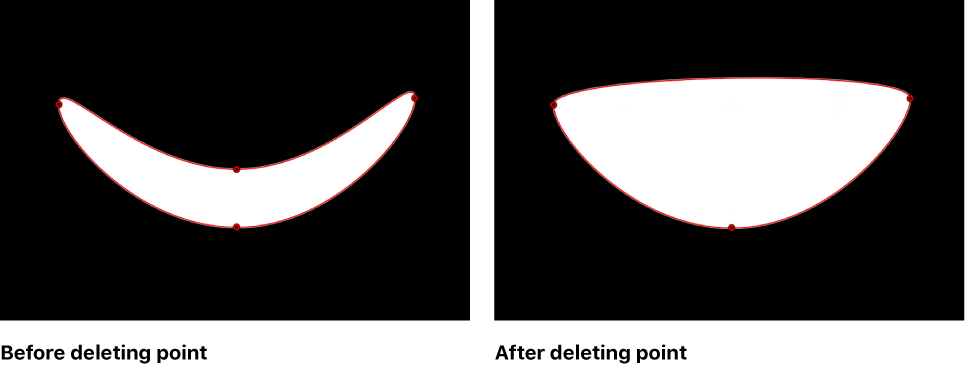
Important: If you delete a point from a shape that has a keyframed shape animation parameter in the Keyframe Editor, that control point is removed from the entire animation.