
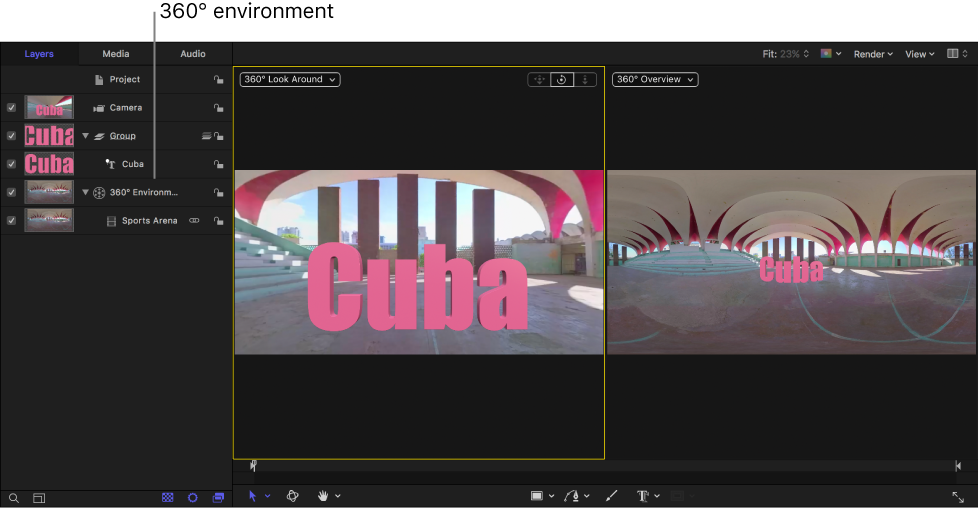
When you create a new 360° project, Motion places an object called a 360° environment in the Layers list. Like a group, a 360° environment is an enclosing object that contains other objects. However, a 360° environment has special requirements:
Equirectangular media must reside in a 360° environment; otherwise, the spherical projection will not render correctly.
Only image-based media and filters can reside in a 360° environment. Other objects such as text, particle systems, and shapes must be placed inside a standard group.
A 360° project differs from a normal Motion project in other ways as well:
The Projection pop-up menu in the Project Properties Inspector is set to 360° Monoscopic.
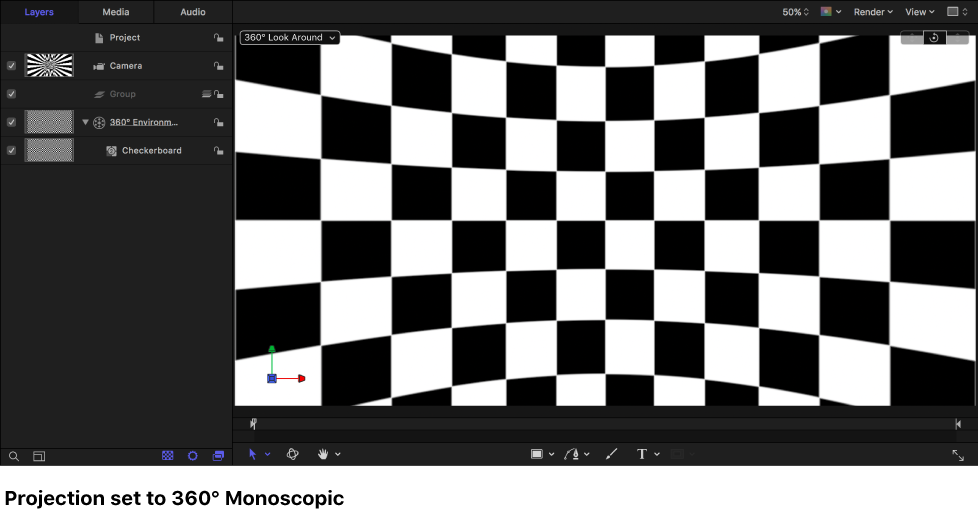
The following image shows the Checkerboard generator in a 360° Motion project. Because the project is set to 360° Monoscopic projection (and the generator resides in the 360° environment), the checkerboard image is “projected” spherically in the canvas.
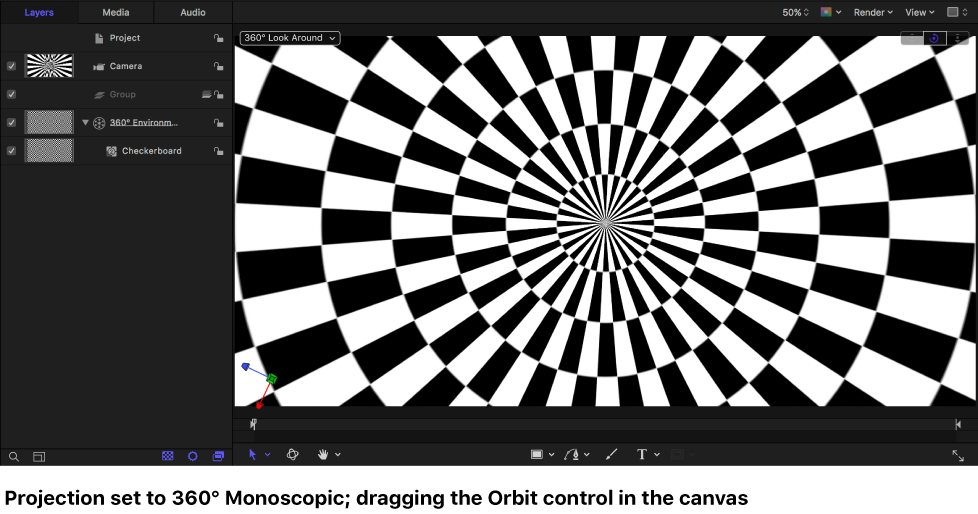
With the Camera pop-up menu in the canvas set to 360° Look Around, you can drag the Orbit control to “look around” inside the 360° projection.
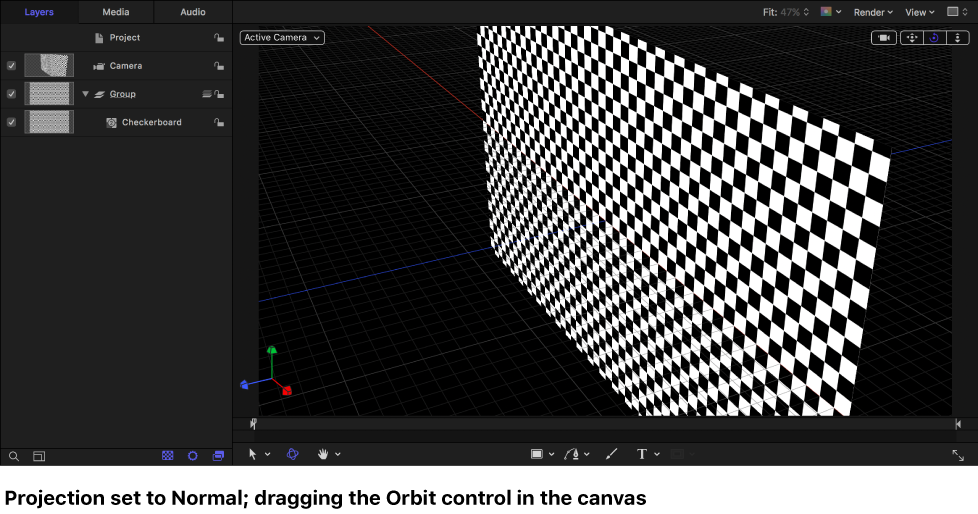
Note: When you drag the Orbit control in a non-360° project (with Projection set to Normal), the checkerboard image appears flat in the canvas.
The Layers list includes a single 360° environment to contain 360° media, images, and filters (but not objects such as shapes, text, or replicators).
The Layers list contains a single 3D group to which you can add objects such as shapes, text, replicators, and so on.
You can add additional 3D groups.
Root-level groups must be 3D groups (you can, however, nest 2D groups within 3D groups).
No onscreen controls (such as transform handles or filter controls) are available for objects in 360° environments. In 360° projects, onscreen controls are available only for objects in groups.
Note: Because there are no onscreen controls for objects in a 360° environment, drawing tools in the canvas toolbar are not available.
The canvas is automatically set to side-by-side viewports, and the zoom level is set to Fit. 360° Look Around is the selected camera view in the left viewport, and 360° Overview is the selected camera view in the right viewport.
The project contains a single Viewpoint camera. (A 360° project must contain at least one camera.)
When you add an additional camera to the project, the Camera Type pop-up menu in the Camera Inspector is set to Viewpoint.
The Depth of Field option is not available in the Render menu in the canvas.
Export is based on what appears in the current 360° Overview camera view.
360° projects use progressive frames and square pixels.
360° metadata is not supported in all export options. For example, 360° metadata is not supported by the JPEG image format.
360° video is navigable only on specific websites, such as Vimeo 360, or by using a VR headset.