
Two settings in the Shape pop-up menu (in the Replicator Inspector) let you set a custom layout pattern for elements in the replicator:
Geometry: Places elements in the replicator pattern along the outline of a custom geometry shape (a circle or Bezier shape, for example).
Image: Places elements in the replicator pattern along the outline of (or as a fill within) an image or movie clip.
Add a shape as a new layer in your project.
In the Layers list, select the replicator, then, in the Replicator Inspector, click the Shape pop-up menu and choose Geometry.
The Shape Source well appears in the Inspector and HUD.
From the Layers list, drag the shape to the Shape Source well.
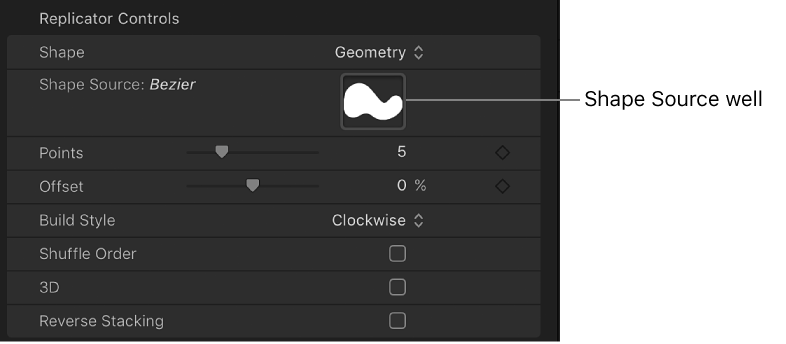
When the pointer becomes a curved arrow, release the mouse button.
A thumbnail of the shape appears in the well and is used as the source for the shape of the replicator. To hide the original shape you created in step 1, deselect its checkbox in the Layers list.
Note: Image objects cannot be used as a shape source when the Shape pop-up menu is set to Geometry.
Add a shape or other image that contains an alpha channel as a new layer in your project.
In the Layers list, select the replicator, then, in the Replicator Inspector, click the Shape pop-up menu and choose Image.
The Image Source well appears in the Inspector and HUD.
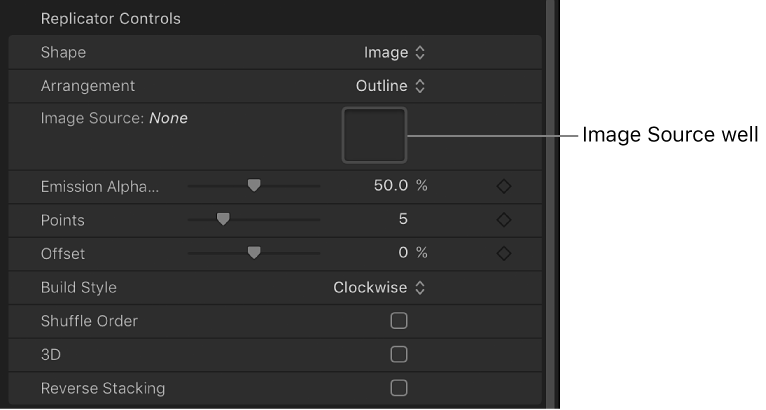
From the Layers list, drag the image into the Image Source well, and when the pointer becomes a curved arrow, release the mouse button.
A thumbnail of the image appears in the well and is used as the source for the shape of the replicator pattern. To hide the original shape you created in step 1, deselect its checkbox in the Layers list.
If your source image has areas of varying transparency, you can set a minimum opacity value necessary to create a replicator element on the source image using the Emission Alpha Cutoff slider. For example, when set to 50%, elements appear only at points where the alpha value of the image is equal to or greater than 50% opacity.
To set the type of pattern, click the Arrangement pop-up menu, then choose an option:
Outline: Pattern elements are placed along the rectangular outline of the image source.
Tile Fill: Pattern elements are flanked in rows and columns inside the borders of the image source.
Random: Pattern elements are distributed in random fashion inside the borders of the image source.