
After you apply the Keyer filter to a video or image layer in your project, you can modify and refine the keying parameters in the Filters Inspector, which contains the following controls:
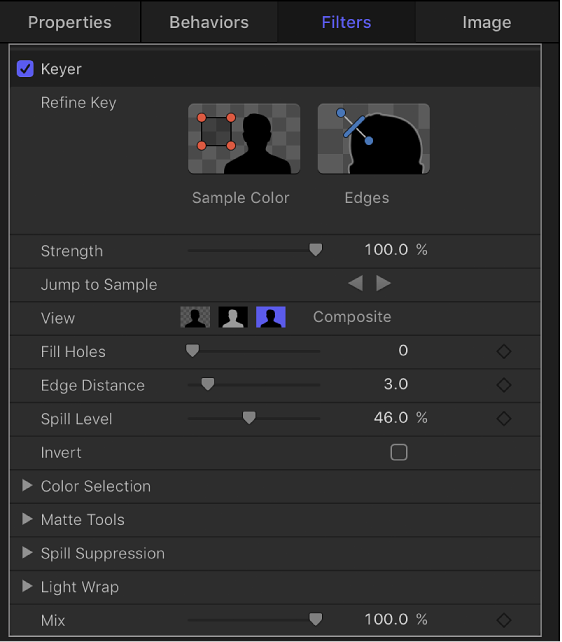
Use the Refine Key tools—Sample Color and Edges—to manually sample regions of an image to modify the tolerance (core transparency) of the generated key.
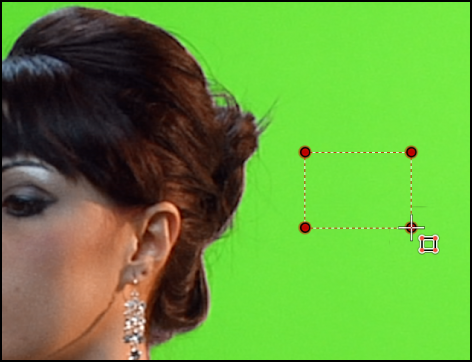
Sample Color: A button that activates an onscreen control to select regions of the image to be turned transparent. Click the Sample Color tool, then drag a selection rectangle in the canvas to define a range of color to key. After you create a selection rectangle, you can resize it to sample more or fewer shades of color, increasing or decreasing the range of background color used to create transparency. You can also add more selection rectangles to expand the range of color that is keyed, or add more selection rectangles at other frames of the clip to maintain transparency when lighting conditions change. (To add selection boxes, select the Keyer filter in the Layers list, then press and hold the Shift key while dragging in the canvas.)
Note: Adding a Sample Color selection box to a frame adds to the sampled region that’s defined when you first apply this filter.
When you sample regions in multiple frames, keyframes are added to interpolate the difference from one frame to the next. (Unlike standard keyframes, color-sampling keyframes are hidden in the Motion window by default.) The Jump to Sample buttons let you navigate between frames you’ve sampled, to make changes. For more information on keyframing the Keyer filter, see About animated parameters in the Keyer filter.
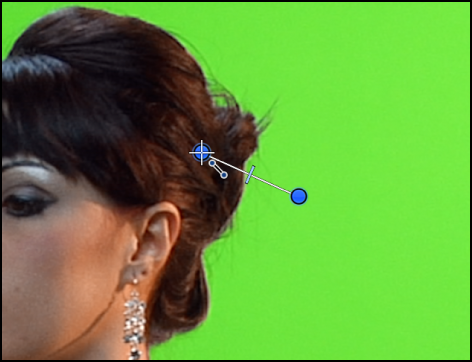
Edges: A button that activates an onscreen control to refine the transparency of marginal regions of the keyed subject, such as hair, reflections, smoke, or moving subjects with motion blur. Click the Edges tool, then drag in the canvas to draw a line that crosses the boundary of the semitransparent region you want to adjust (with one point on the keyed foreground subject and the other point on the transparent background). Next, adjust the slider handle in the middle of this control line, outward to soften the matte, or inward to harden it.
Note: To remove a Sample Color selection rectangle or Edges control line, select the rectangle or control line in the canvas, then press Delete. Alternatively, Option-click inside the selection box or control line.
Strength: A slider to adjust the tolerance (core transparency) of the Keyer filter’s automatic sampling. The default value is 100%. Reducing this value narrows the range of color sampled, resulting in less transparency in the keyed image. Increasing the Strength value expands the range of color sampled, resulting in more transparency in the keyed image. Use the Strength slider to retrieve areas of semitransparent detail such as hair, smoke, or reflections.
Important: Setting Strength to 0 bypasses the filter’s automatic sampling altogether, allowing you to manually sample a range of color using the Refine Key tools (described above).
Jump to Sample: Left and right arrow buttons to navigate to frames that have been manually sampled using the Sample Color and Edges tools. When the playhead is at a sampled frame, a numeric counter to the right of these buttons indicates your current position in the range of sampled frames (for example, “3 of 5”).
View: Buttons to switch between three keying preview modes in the canvas, useful for refining your key. The View setting affects what is rendered in your final output. For example, setting View to Matte lets you export a grayscale matte image that you can use as a luma channel matte in another application. There are three buttons:
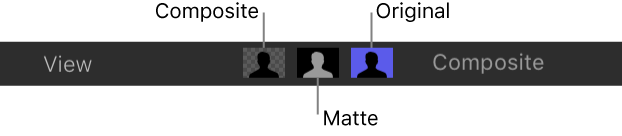
Composite: A button that, when selected, displays the final composited image in the canvas, with the keyed foreground object isolated against a transparent background, which lets layers underneath show through.
Matte: A button that, when selected, displays the grayscale matte, or alpha channel, generated by the keying operation. Viewing the alpha channel directly lets you evaluate the parts of the generated matte. Areas in the matte that appear white are visible in the final composite; areas that appear black are transparent; and areas with shades of gray are semitransparent (lighter grays being more solid). Viewing the alpha channel makes it easier to spot unwanted holes in the key, or areas of the key that aren’t transparent enough.
Original: A button that, when selected, displays the original, unkeyed image in the canvas. This view is useful to sample colors from the original image.
Fill Holes: A slider to adjust solidity in regions of marginal transparency throughout a key. This control is useful when you’re satisfied with the edges of your keyed matte, but you have unwanted holes in the interior of the foreground subject that you can’t eliminate using the Strength parameter without ruining your edges. Higher slider values fill more holes in the solid areas of the keyed subject.
Edge Distance: A slider to adjust how close to the edge of your keyed subject the effect of the Fill Holes parameter gets. Decreasing this parameter brings the solid, nontransparent area of the matte closer to the edge of the subject being keyed, sacrificing translucence at the edges in favor of filling unwanted holes at the edge of the keyed subject, or retrieving areas of semitransparent detail, such as hair, smoke, or reflections. Increasing this parameter value pushes the filled area of the matte farther to the interior of the subject, away from the edges, adding translucence to regions of the image that aren’t being keyed aggressively enough. Increasing this parameter too much may introduce regions of unwanted translucence in parts of the subject that should be solid.
Spill Level: A slider to set how much spill suppression is applied to the keyed subject. Spill suppression is a color correction that neutralizes the green or blue colored light that often bounces off a green screen or blue screen background and tints the edges of a subject during a shoot. Consequently, it becomes more difficult to separate the foreground subject from the background during the keying process. Spill suppression is applied when you add the Keyer filter.
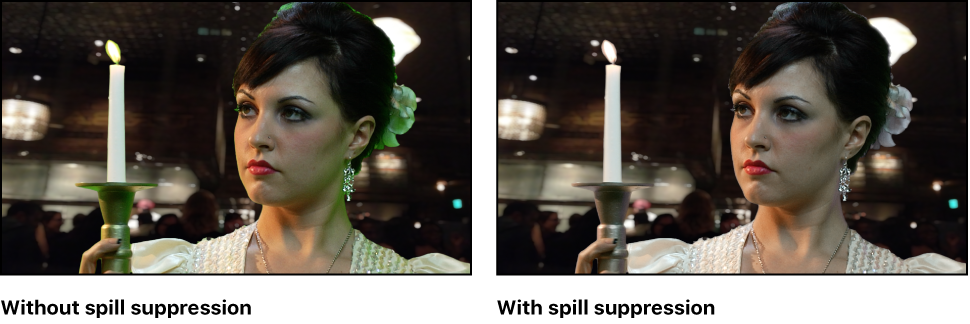
The color that is suppressed in the final image is based on the sampled portion of the image. The Spill Level slider controls how much spill suppression is applied to the keyed subject. For example, if the subject was shot in front of a green screen background, increasing the Spill Level value adds magenta to the foreground image, which neutralizes any unwanted green cast that your subject may be exhibiting. Spill suppression can be further customized using the controls in the Spill Suppression group, described later. Setting Spill to 0 turns off spill suppression.
Invert: A checkbox that, when selected, inverts the generated matte, so that solid areas become transparent, and vice versa.
Click the disclosure triangle in the Color Selection row to reveal controls for adjusting the tolerance (core transparency) and softness (edge transparency) in the chroma and luma channels of the keyed region. Which controls are adjustable depends on the Graph mode (Scrub Boxes or Manual) you select in this group of controls.
These controls are meant to be used after you begin creating a key using automatic sampling or the Sample Color and Edges tools. (However, you can skip those tools and create a key using the Color Selection controls in Manual mode.) The graphical Chroma and Luma controls in the Color Selection group provide a detailed way of refining the range of hue, saturation, and image lightness that define the keyed matte.
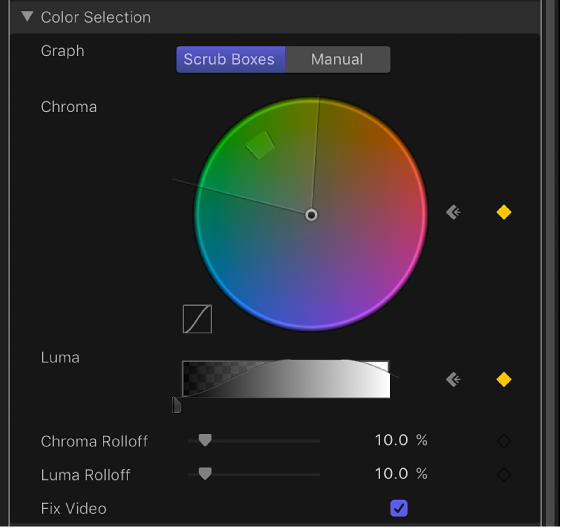
Before you adjust these controls, the graphs in the Chroma and Luma controls represent ranges of color and luma in the image that have been automatically and manually sampled (using the Refine Key tools and the Strength slider).
The Color Selection group contains the following controls:
Graph: Two buttons to set how the adjustable graphs in the Chroma and Luma controls are used to fine-tune a key:
Scrub Boxes: When selected, this button limits the Chroma and Luma controls to adjusting softness (edge transparency) in the matte you’re creating. In Scrub Boxes mode, you cannot manually adjust tolerance (core transparency), which is determined by the Keyer filter’s automatic sampling, plus any Sample Color selection boxes you’ve added in the canvas. To increase matte tolerance, add more Sample Color selection boxes or adjust the Strength slider.)
Manual: When selected, this button allows Chroma and Luma controls to adjust the softness (edge transparency) and tolerance (core transparency) in the matte you’re creating. Make sure the Strength slider is set to a value greater then 0 before you switch into Manual mode, otherwise the Chroma and Luma controls are disabled. When you switch to Manual mode, the Refine Key tools and Strength slider become disabled, but samples you’ve made with those controls continue to contribute to the matte.
Important: After you switch to Manual mode, it’s inadvisable to switch back to Scrub Boxes mode. For best results, begin keying an image using the Sample Color and Edges tools in Scrub Boxes mode. Switch to Manual mode afterwards if you feel it’s necessary to refine your matte using the Chroma and Luma controls. However, after you switch to Manual mode, do not switch back to Scrub Boxes mode. If you do, you may experience unexpected combinations of additionally sampled and keyframed values that are difficult to control.
Chroma: Two graphic controls in the color wheel control to adjust the isolated range of hue and saturation that help define the keyed matte. The selected Graph mode governs which graphs in the color wheel are adjustable. The outer graph controls the softness (edge transparency) of the matte you’re creating, and can be adjusted in either Scrub Boxes or Manual mode. The inner graph controls tolerance (core transparency), and is only adjustable when in Manual mode.
Drag any side of either graphic control to expand or contract the graph’s border, adding to or subtracting from the range of hue and saturation contributing to the key. In manual mode, you can also drag inside the tolerance graphic control to adjust its overall position in the color wheel.
To the left of the color wheel, a small graph displays the slope of chroma rolloff, the relative softness of matte edges in regions most affected by the Chroma control. Dragging the Chroma Rolloff slider (described below) modifies the shape of this slope.
It’s possible to zoom into and pan around the Chroma control to more precisely adjust the graphs:
To zoom incrementally into the Chroma control, press and hold the Z key and click the color wheel. To zoom out, press and hold the Option and Z keys and click the color wheel. To smoothly zoom out, press and hold the Z key and drag left in the color wheel. To smoothly zoom in, press and hold the Z key and drag right in the color wheel. You can also press and hold the Space bar and Command key (in that order) and drag left in the color wheel to zoom out or drag right to zoom in.
To pan in the Chroma control, press and hold the H key and drag in the color wheel. You can also press and hold the Space bar and drag in the color wheel in the direction you want to move it.
To reset the zoom and recenter the Chroma control, move the pointer over the Chroma control and press Shift-Z.
Luma: A grayscale gradient control with adjustable handles to modify the isolated range of the luma channel (the range of lightness and darkness) that also helps define the keyed matte. The upper handles (which only appear in Manual mode) adjust the tolerance (core transparency) of the luma channel’s contribution to the key. The lower handles adjust the softness (edge transparency) of the luma channel’s contribution to the key.
The Graph mode governs which handles are adjustable. In Scrub Boxes mode, you can adjust only the lower softness handles. In addition to using the handles, you can drag the slope in the graph to adjust the softness.
In Manual mode, you can also adjust the upper tolerance handles, which modify core transparency within the luma channel of the matte. Dragging the slope in the graph adjusts the lower handles (the softness). To adjust all handles simultaneously, drag inside the curve in the gradient control.
By default, the slope of the left and right sides of the Luma graph has a slight “S” curve. You can modify the shape of the curve by adjusting the Luma Rolloff slider (described below).
Note: The luma softness handles may extend past the outer boundaries of the Luma control. This is due to the floating-point precision of the Keyer filter, and is an expected behavior.
Chroma Rolloff: A slider to adjust the linearity of the chroma rolloff slope (displayed in the small graph to the left of the Chroma control). Chroma rolloff modifies the softness of the matte around the edges of regions that are affected most by the Chroma control. Lowering this value makes the slope of the graph more linear, which softens the edges of the matte. Raising this value makes the slope of the graph steeper, which sharpens the edges of the matte.
Luma Rolloff: A slider to adjust the linearity of the luma rolloff slope (the ends of the bell-shaped luma curve displayed in the Luma control). Luma rolloff modifies the softness of the matte around the edges of regions that are affected most by the Luma control. Lowering this value makes the slope between the upper and lower handles in the Luma control more linear, which increases edge softness in the matte. Raising this value makes the slope steeper, sharpening the edges of the matte and making them more abrupt.
Fix Video: Select this checkbox to apply subpixel smoothing to the chroma components of the image, reducing the jagged edges that result from keying compressed media using 4:2:0, 4:1:1, or 4:2:2 chroma subsampling. Although selected by default, this checkbox can be deselected if subpixel smoothing degrades the quality of your keys.
Click the disclosure triangle in the Matte Tools row to reveal controls for post-processing the transparency matte generated by the previous sets of parameters. These parameters don’t alter the range of values sampled to create the keyed matte. Instead, they alter the matte generated by the Keyer filter’s basic and advanced controls (in the Color Selection parameter group), letting you shrink, expand, soften, or invert the matte to achieve a better composite.
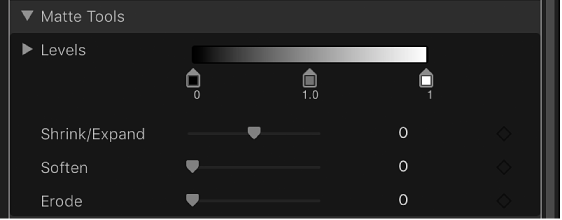
The Matte Tools group contains the following controls:
Levels: A grayscale gradient to alter the contrast of the keyed matte. Drag this control’s three handles to set the black point, white point, and bias (distribution of gray values between the black point and white point). Adjusting the contrast of a matte can be useful for manipulating translucent areas of the key to make them more solid (by lowering the white point) or more translucent (by raising the black point). Dragging the Bias handle (the gray tag under the gradient) right erodes translucent regions of the key, while dragging the Bias handle left makes translucent regions of the key more solid.
Black, White, Bias: Click the disclosure triangle in the Levels row to reveal sliders for the Black, White, and Bias parameters. These sliders, which mirror the settings of the Levels handles described above, allow you to keyframe the three Levels parameters (via the Add Keyframe button to the right of each slider). Keyframing the Black, White, and Bias parameters may yield a better key, one that adapts to changing blue screen or green screen conditions.
Shrink/Expand: A slider to manipulate the contrast of the matte to affect matte translucence and matte size simultaneously. Drag the slider left to make translucent regions more translucent while simultaneously shrinking the matte. Drag the slider right to make translucent regions more solid while simultaneously expanding the matte.
Soften: A slider to blur the keyed matte, feathering the edges by a uniform amount.
Erode: A slider that you can drag to the right to gradually increase transparency from the edge of the solid portion of the key inward.
Click the disclosure triangle in the Spill Suppression row to reveal controls for neutralizing a colored light that bounces off the blue screen or green screen and contaminates the isolated foreground subject. This fringing around the edge of the subject is called spill, and is difficult to eliminate because it’s part of the subject you’re trying to preserve.
The Spill Suppression controls work by letting you adjust the color correction that neutralizes unwanted color in the foreground subject. Whereas the Spill Level slider (described above) controls how much suppression is applied, the controls in this group let you customize the quality of suppression being performed.
When first applied, the Keyer filter adds spill suppression to the video clip or image, based on the dominant color sampled to create the initial key. This automatic spill suppression desaturates the key color so fringing around the foreground subject appears gray (rather than blue or green). But if you reduce the Spill Level slider to 0, effectively turning off spill suppression, the gray fringing turns blue or green (the color of your background), proving that successful spill suppression is rendering the background a neutral gray.
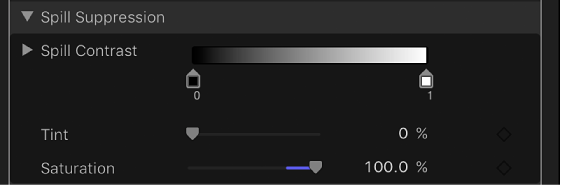
The Spill Suppression group contains the following controls:
Spill Contrast: A grayscale gradient to adjust the contrast of the color being suppressed, using Black point and White point handles (the tags under the gradient). Modifying spill contrast can reduce the gray fringing surrounding a foreground subject. The Black point handle (on the left side of the gradient control) lightens edge fringing that’s too dark for a successful composite. The White point handle (on the right side of the gradient control) darkens edge fringing that is too light. Depending on how much spill is neutralized by the Spill Level slider, these controls may have a greater or lesser effect on the subject.
Black, White: Click the disclosure triangle in the Spill Contrast row to reveal sliders for the Black and White point parameters. These sliders, which mirror the settings of the Spill Contrast handles described above, allow you to keyframe the Black point and White point parameters (via the Add Keyframe button to the right of each slider).
Tint: A slider to restore the natural color of the keyed foreground subject. Because the Spill Suppression controls eliminate blue or green spill by desaturating subtle blue or green fringing and reflection on the subject, the Tint slider lets you add hues to restore the natural color of the subject. Overdoing this parameter results in over-tinting the subject with the complementary color of the hue being suppressed—magenta if green, and orange if blue.
Saturation: A slider to alter the range of hues introduced by the Tint slider (when the Tint slider is used at moderate levels).
Click the disclosure triangle in the Light Wrap row to reveal controls for blending color and lightness values from the background layer of your composite with the keyed foreground layer. Using these controls, you can simulate the interaction of environmental lighting with the keyed subject, making it appear as if background light wraps around the edges of a subject. In the following image on the right, with Light Wrap applied, environmental lighting from the orange sky background layer “wraps around” the edges of the candle and the right edge of the woman’s hair.
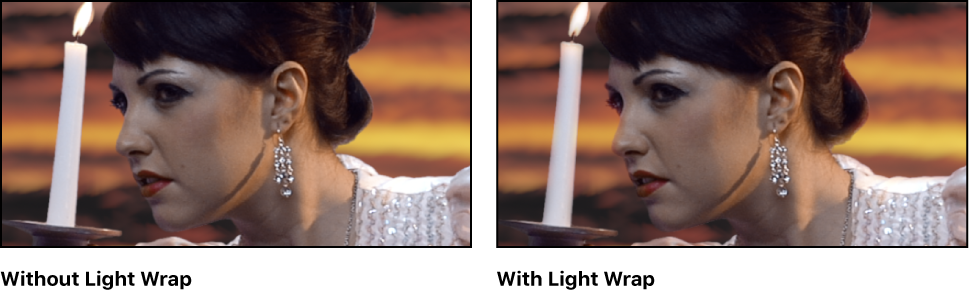
In Motion, the Light Wrap operation blends light and dark values from the background with the edges of the keyed foreground subject, and can be used to create color-mixing effects around the edges of the solid part of a key to better marry the background and foreground layers of your keyed composite.
Light Wrap is the last operation in the image-processing pipeline. In other words, the light-wrap effect is added after every other image operation is processed, including filters, lights and shading, and other composited effects. As a result, Light Wrap accounts for any other visual effect that might alter the look of the object it is applied to, yielding the most desirable result.
Important: If the layer is set to the Light Wrap blend mode and you increase the Light Wrap parameter in the Keyer filter above 0, the Light Wrap parameters of the Keyer filter take precedence (and the Blend Mode is ignored). However, the Light Wrap blend mode in the Properties Inspector for a group overrides the Light Wrap parameters of any Keyer filters applied to layers in that group.
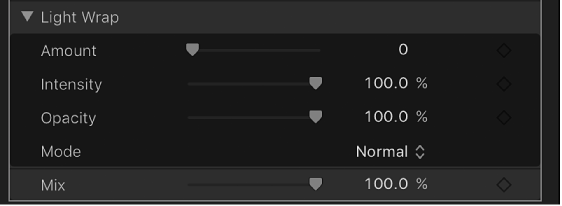
The Light Wrap group contains the following controls:
Amount: A slider to control the overall light-wrap effect, setting how far into the foreground the light wrap extends.
Intensity: A slider to adjust gamma levels to lighten or darken the interaction of wrapped edge values with the keyed foreground subject.
Opacity: A slider to fade the light-wrap effect up or down.
Mode: A pop-up menu to choose the compositing method that blends the sampled background values with the edges of the keyed subject. There are five options:
Normal: Evenly blends light and dark values from the background layer with the edges of the keyed foreground layer.
Lighten: Compares overlapping pixels from the foreground and background layers, then preserves the lighter of the two. Good for creating a selective light-wrap effect.
Screen: Superimposes lighter portions of the background layer over wrapped areas of the keyed foreground layer. Good for creating an aggressive light-wrap effect.
Overlay: Combines the background layer with the wrapped areas of the keyed foreground layer so overlapping dark portions become darker, light portions become lighter, and colors become intensified.
Hard Light: Similar to the Overlay composite mode, except that colors become muted.
A slider to set the percentage of the original image to be blended with the keyed image. 100% is the fully keyed image, while 0% is the original, unkeyed image.