
When a parameter contains at least one keyframe, or when the Record button is enabled, a keyframe is added every time you modify a parameter at a new playhead position. If you animate while the project is playing, you create a keyframe at every frame. Additionally, when you convert a behavior to keyframes, you often end up with an unwieldy amount of keyframes.
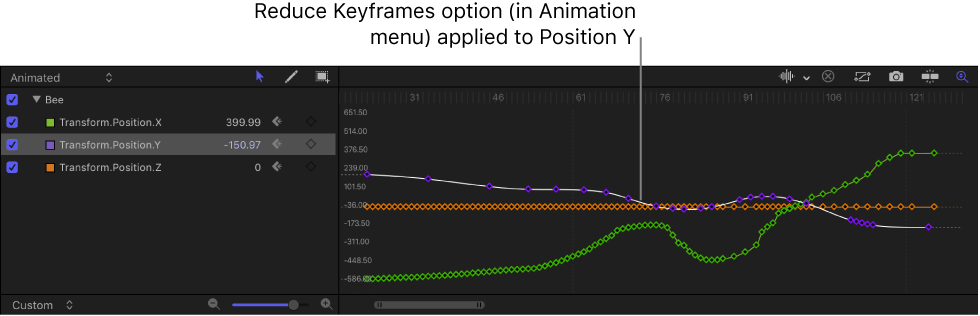
In many cases, the curve created by your animation can be represented using fewer keyframes. Often, this provides a smoother rate of change and lets you take advantage of interpolation methods such as Bezier or Continuous.
You can streamline your keyframe curves in two ways: by simplifying an existing animation curve using the Reduce Keyframes command in the Animation menu for that parameter or by adjusting keyframe thinning options before recording keyframes.
Click the Animation menu for the parameter you want to modify, then choose Reduce Keyframes.
Note: The Animation menu (a down arrow) remains hidden until you position the pointer over the far-right side of the parameter row you want to modify.
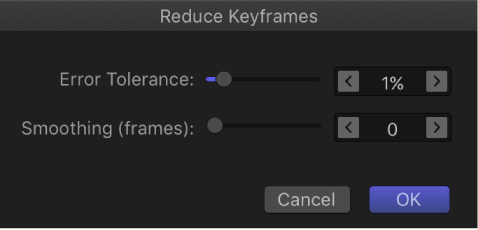
In the Reduce Keyframes dialog, adjust the Error Tolerance and Smoothing parameters to obtain the curve you want.
Use the Recording Options dialog to adjust the Keyframe Thinning setting or to disable recording during playback. (This setting has no effect on ordinary keyframing.)
Do one of the following:
Choose Mark > Recording Options (or press Option-A).
Double-click the Record button (in the timing toolbar).
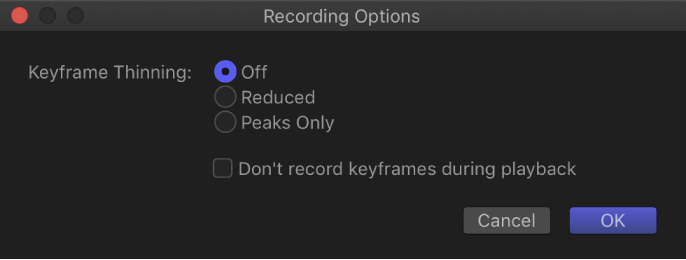
In the Recording Options dialog, select a Keyframe Thinning option:
Off: No thinning is applied. Keyframes are added at every frame where the parameter is changed.
Reduced: Motion eliminates keyframes that can easily be replaced with a simple curve.
Peaks Only: Only keyframes with dramatic value changes are recorded.
Don’t record keyframes during playback: Select this checkbox if you don’t want keyframes to be recorded while the project is playing back.
Click OK.
If the Record button is enabled or a parameter contains at least one keyframe, keyframes are added when you make parameter adjustments. To prevent creating accidental animation, you can restrict automatic keyframing so it happens only when the project is not playing.
Choose Mark > Recording Options.
In the Recording Options dialog, select “Don’t Record keyframes during playback.”
Click OK.