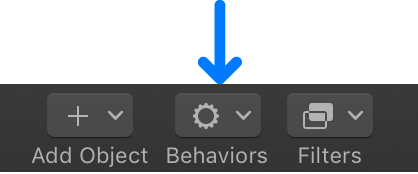
All available behaviors appear in the Library and in the Behaviors pop-up menu in the toolbar.
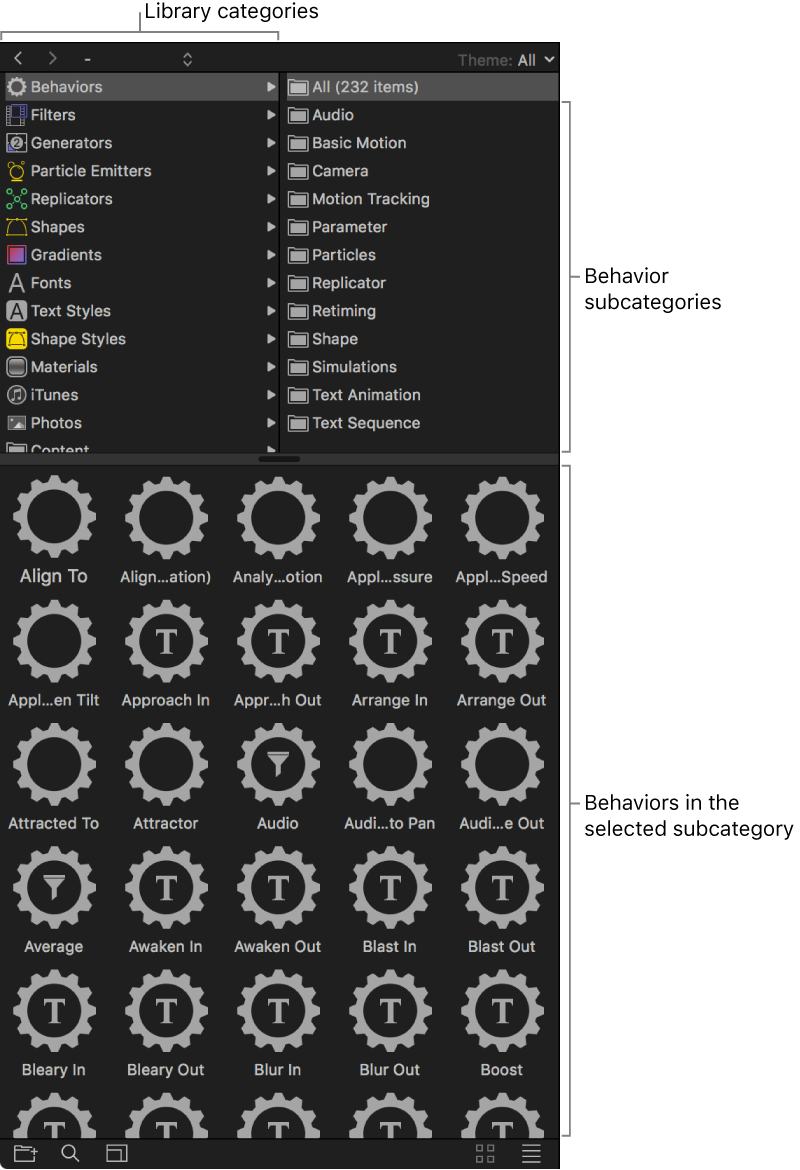
Select the Behaviors category in the left pane of the Library to reveal the behavior subcategories in the right pane. Selecting a subcategory reveals all behaviors of that type in the Library stack (below the category and subcategory panes).
When you select a behavior in the Library, a short description and preview of the behavior appear in the preview area.
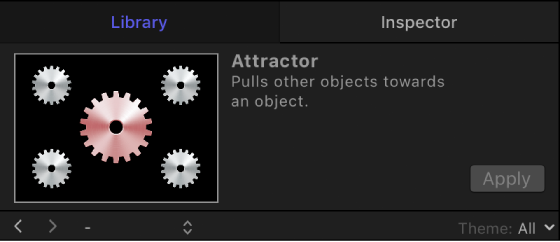
The animated previews help you understand how each behavior works. Although most previews are self-explanatory, the Parameter category previews show before-and-after examples of the behavior’s effect on an animated object, with the gear graphic turning red to show the object after the behavior takes effect. For Simulation behaviors, the red gear graphic identifies the object that the selected behavior is applied to.
You can apply behaviors from the Library or from the Behaviors pop-up menu in the toolbar. See Apply behaviors overview.