
Applying a behavior to an object animates specific parameters of that object. Because behaviors don’t add keyframes, removing a behavior eliminates the animated effect. All types of behaviors are removed in the same way.
Do one of the following:
Drag a behavior from the Library to an appropriate object in the canvas, Layers list, or Timeline.
An advantage to applying behaviors from the Library is the ability to preview the animation created by the behavior in the Library preview area.
Note: When applying a behavior to a camera or light, it’s usually easier to drag the behavior to a camera or light in the Layers list or Timeline than to its wireframe object in the canvas.
Select an object in the canvas, Layers list, or Timeline, then select a behavior from the Library and click Apply in the preview area.
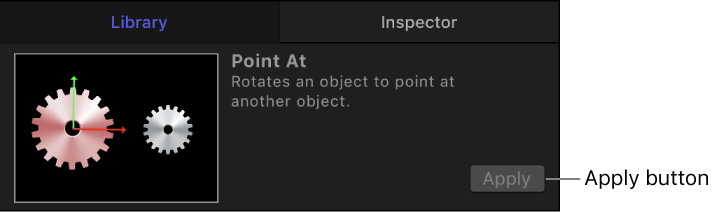
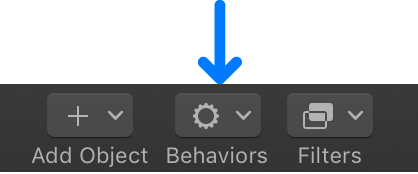
Select an object in the canvas, Layers list, or Timeline, click Behaviors in the toolbar, then choose a category and behavior from the pop-up menu.
Select all objects to apply the behavior to.
In the Layers list, canvas, or Timeline, Shift-click to select a contiguous set of objects, or Command-click to select noncontiguous objects.
Do one of the following:
In the toolbar, click Behaviors, then choose a category and behavior from the pop-up menu.
Select a behavior in the Library, then click Apply in the preview area.
Select a behavior in the Layers list, Timeline, Behaviors Inspector, or pop-up menu in the title bar of the HUD.
Do one of the following:
Choose Edit > Delete.
Press Delete.
Note: You can also Control-click a behavior in the Layers list or Timeline, then choose Delete from the shortcut menu.