
Move an object when you want it to begin and end at a different point in the Timeline.
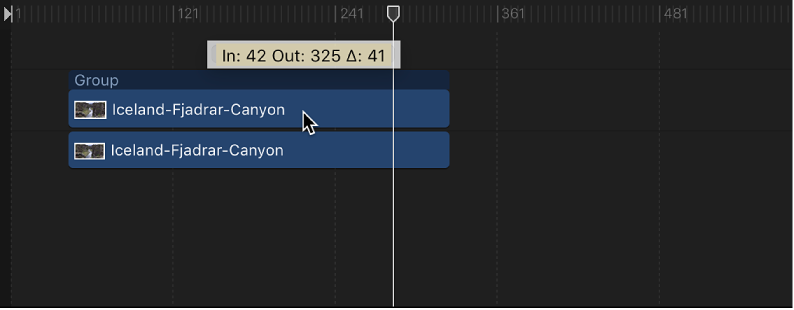
In the Timeline track area, drag a bar left or right to move it in time.
As you drag, a tooltip appears, identifying the new In and Out points; a delta symbol (triangle) indicates the amount of change in frames or timecode.
Do one of the following:
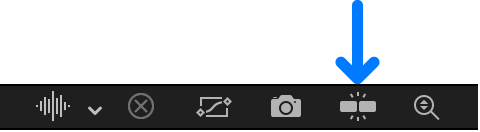
Click to select the Snapping button in the upper-right corner of the Timeline, then drag a bar in the track area.
Press Shift as you drag a bar in the Timeline.
Vertical lines appear in the track, corresponding to the In and Out points of other timebars. The active bar snaps to these lines as you drag.
You can move a timebar to a new location in its track by using the Move Selected In Point or Move Selected Out Point command. This command shifts the position of the selected object to the current playhead position. You can also use this command to move and align multiple objects in one operation.
Select the bar to move.
Shift-click to select multiple bars, if desired.
Place the playhead at the point in the Timeline where you want to move the bar.
Do one of the following:
Align the beginning of the bar to the playhead: Choose Mark > Move Selected In Point (or press Shift-Left Bracket).
Align the end of the bar to the playhead: Choose Mark > Move Selected Out Point (or press Shift-Right Bracket).
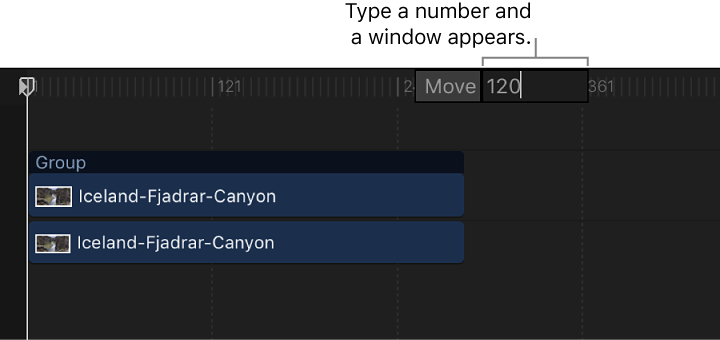
In the Timeline, select the bar (or bars) to move, then type the number of the frame (or timecode) where you want to move the bar.
A value field appears, displaying the number you typed.
Press Return.
The bar’s In point moves to the specified frame number. If you selected more than one bar, they all move to the specified frame number.
Do one of the following:
To move a timebar forward a specific number of frames, select the bar, type a plus sign (+) followed by the number of the frames you want to move, then press Return.
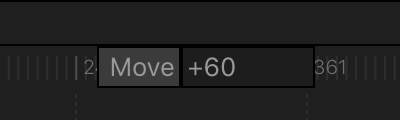
To move a timebar backward a specific number of frames, select the bar, type a minus sign (–) followed by the number of the frames you want to move, then press Return.