
You can use the macOS Colors window in Motion, giving you access to the familiar color pickers such as the color wheel, sliders, or pencils.
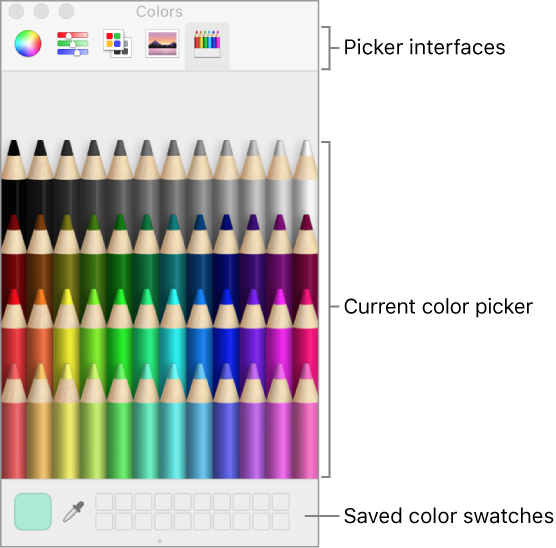
The Colors window has four sections: the buttons at the top select picker interfaces; the large color swatch shows the current color; the middle section shows the active picker; and the row of boxes can be used to save swatches.
Do one of the following:
Click a color well.
Choose View > Show Colors.
Press Shift-Command-C.
Do one of the following:
Click a color in the color picker area.
Click the magnifying glass, then click anywhere on the computer screen to choose a color.
Note: When you open the Colors window by clicking a Motion color well, the color you click in the Colors window loads into the well, and the selected object in the canvas changes color. However, when you open the Colors window from the View menu (or by pressing Shift-Command-C), clicking a color in the Colors window does not load the color into the well or change the selected object. In this case, drag a color swatch from the Colors window to the color well. Similarly, if you leave the Colors window open and select another object in the canvas, clicking in the Colors window does not change the newly selected object.
Click the magnifying glass, then click in the color picker or anywhere on the computer screen.
Drag the color you selected from the large swatch to a white square at the bottom of the Colors window.
Colors saved in this area remain accessible across applications and restarts.