The Select/Transform tool is the default tool in Motion.
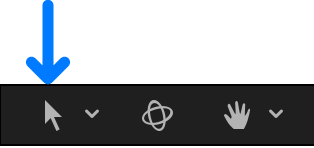
Clicking the Select/Transform tool in the canvas toolbar activates handles in the canvas to adjust a layer’s position, scale, and rotation.
Note: The Select/Transform onscreen controls are not available for layers within a 360° environment.
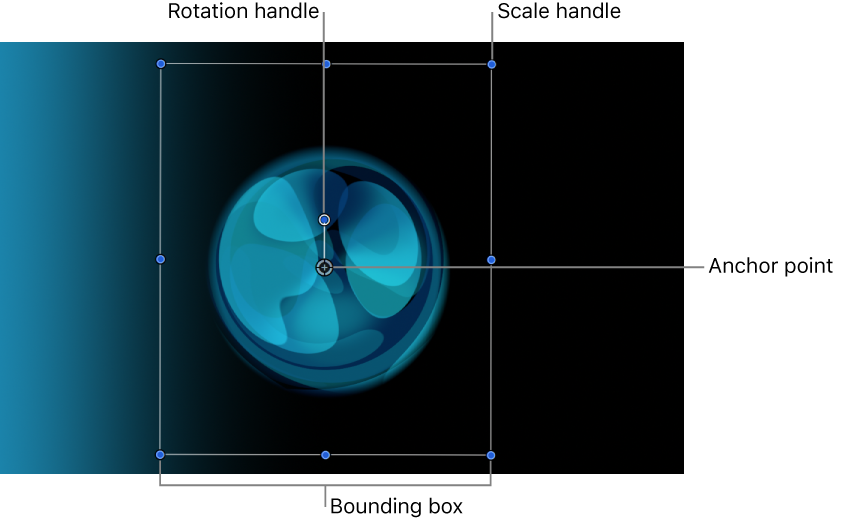
Select a layer in the Layers list or canvas.
A bounding box appears around the selected layer in the canvas.
In the canvas toolbar, click and hold the transform tools pop-up menu, then choose Select/Transform (if it’s not already selected).
By default, the Select/Transform tool is the active tool. If you have another tool selected, such as a Mask or Shape tool, pressing the S key returns you to the Transform tools.
Drag anywhere inside the selected layer’s bounding box in the canvas.
The image is moved to a new position in the canvas, and the values are updated in the Position parameter of the Properties Inspector.
Select a layer in the Layers list or canvas.
A bounding box appears around the selected layer in the canvas.
In the canvas toolbar, click and hold the transform tools pop-up menu, then choose Select/Transform (if it’s not already selected).
By default, the Select/Transform tool is the active tool. If you have another tool selected, such as a Mask or Shape tool, pressing the S key returns you to the Transform tools.
Do any of the following:
Resize width and height at the same time: Drag a corner handle in the canvas.
The width and height are resized independently, which may change the aspect ratio (ratio of width to height) of the image.
Resize width and height proportionally: Press and hold the Shift key while dragging a corner handle in the canvas.
The aspect ratio (ratio of width to height) of the image remains the same.
Resize either width or height: Drag the top or bottom handle to modify height; drag the left or right handle to modify width.
The width or height is resized independently of the other.
Resize around the anchor point: Press and hold the Option key while dragging any scale handle in the canvas.
The layer rescales, but the anchor point of the layer remains pinned to its position in the canvas.
As you drag the scale handles, the new width and height percentages appear in the status bar above the canvas and are updated in the Scale parameter of the Properties Inspector. For more information, see View dynamic canvas feedback.
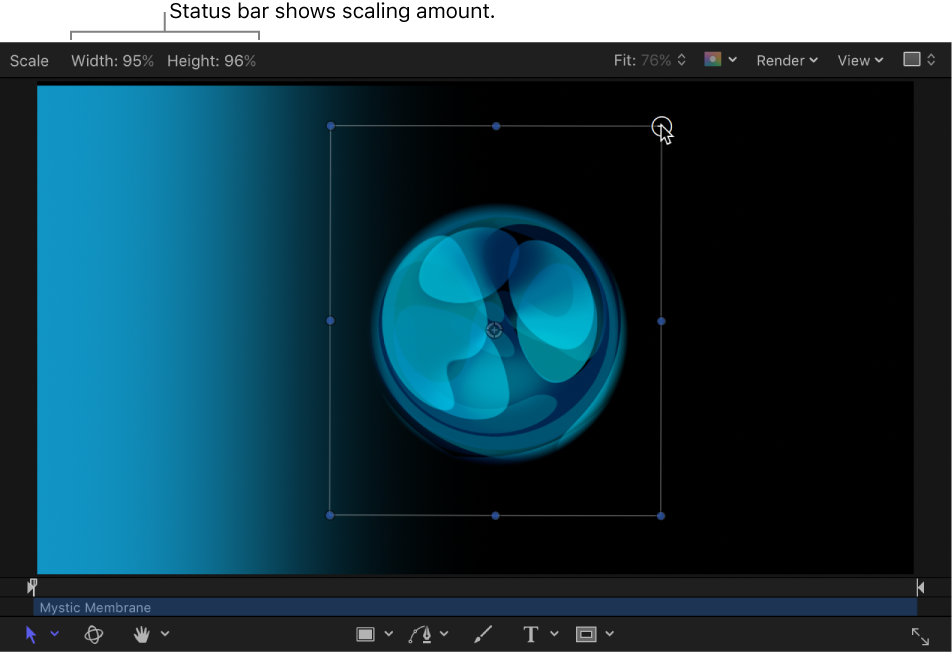
Note: Scaling the width or height of a layer by a negative value reverses the image, flipping its direction.
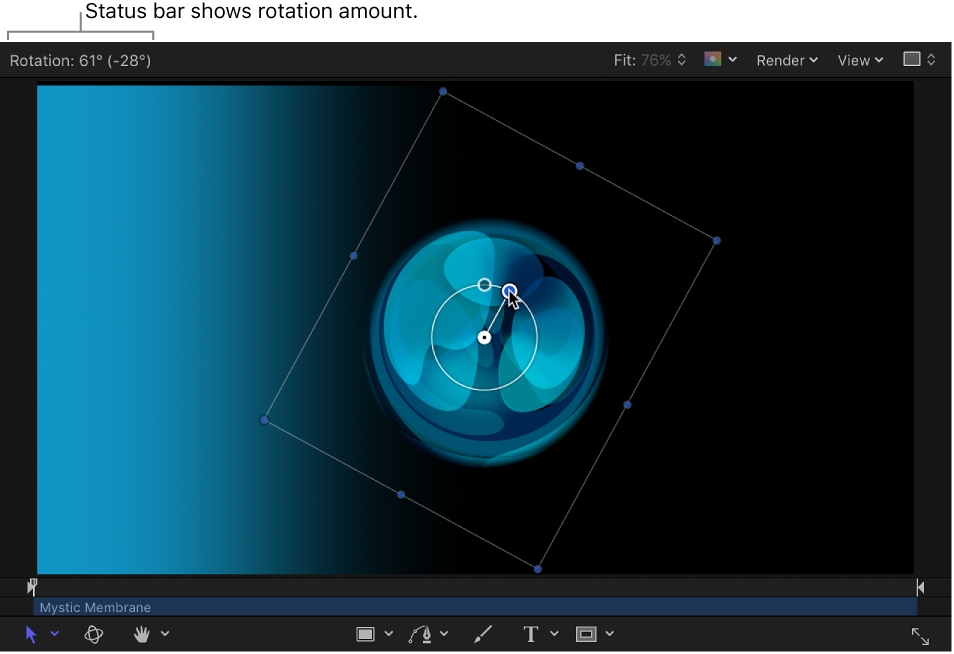
The Select/Transform tool also activates a handle used to rotate the image around its anchor point. For animation purposes, Motion keeps track of the number of times you’ve rotated the layer and stores this value in that layer’s Rotation parameter in the Properties Inspector.
Select a layer in the Layers list or canvas.
A bounding box appears around the selected layer in the canvas.
In the canvas toolbar, click and hold the transform tools pop-up menu, then choose Select/Transform (if it’s not already selected).
By default, the Select/Transform tool is the active tool. If you have another tool selected, such as a Mask or Shape tool, pressing the S key returns you to the Transform tools.
In the canvas, do one of the following:
Drag the rotation handle to rotate the layer.
Press Shift while you drag the rotation handle to constrain the angle of the selected layer to 45-degree increments.
As you drag the rotation handle, the original angle of the layer is indicated by a small circle that appears on a larger circle surrounding the layer’s anchor point. The value of the Rotation parameter is updated in the Properties Inspector. Additionally, the status bar shows you the new angle of rotation. For more information, see View dynamic canvas feedback.