
Motion ships with a collection of built-in art content and effects (text styles and fonts, animated graphics, filter effects, and so on) that you can use in your projects. This content is available in the Library, which is displayed on the left side of the Motion window (next to the Inspector).
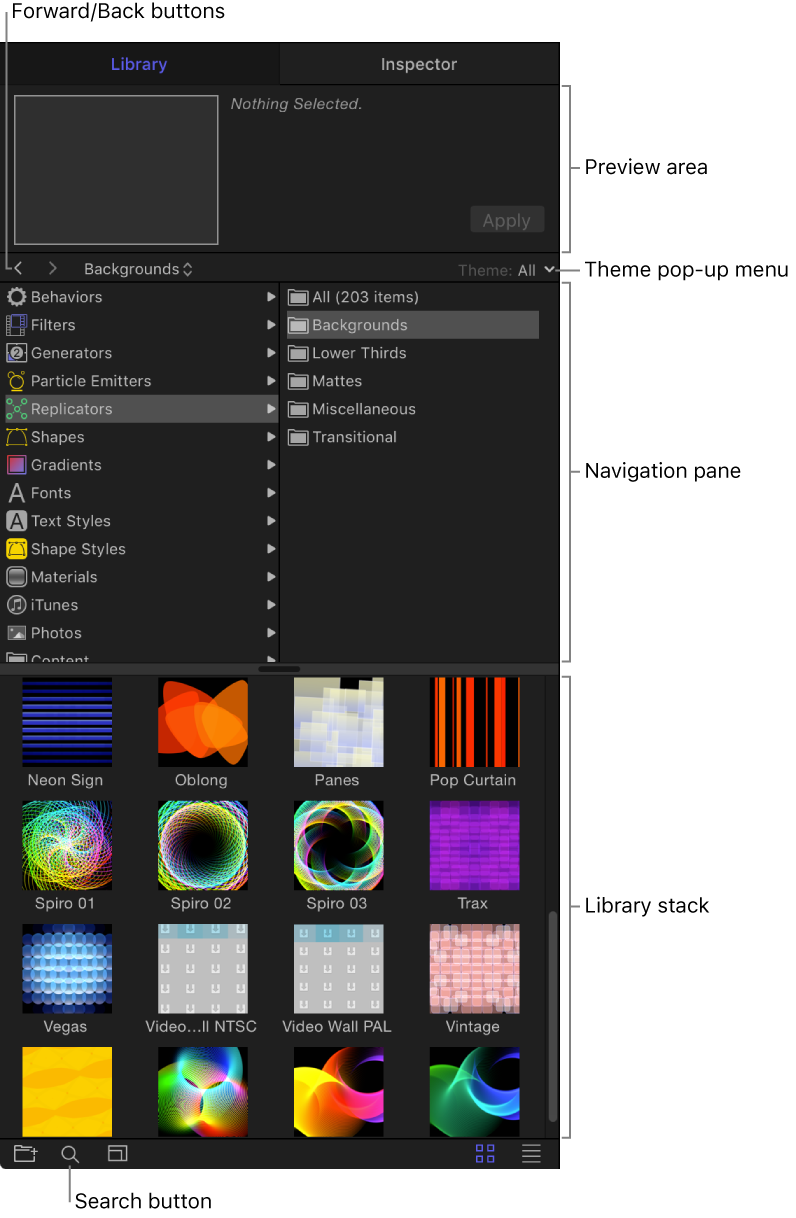
The Library is divided into several areas:
Preview area: At the top of the Library, a thumbnail image displays a video preview of content selected in navigation areas of the Library (special effects, text styles, graphical art, and so on).
Navigation pane: Just below the preview area is a two-column pane displaying the categories and subcategories of content and effects available in Motion. Navigation arrows let you step forward and back through recently viewed categories of content. A pop-up menu lets you filter content by theme (Abstract, Sci-Fi, Urban, and so on).
Library stack: When you select a category and subcategory in the navigation pane, the contents of the subcategory are shown in the lower area of the Library, known as the stack.
If the Library is not visible in the Motion window, you can easily display it.
Click the Library button in the top-left corner of the Motion window.
Choose Window > Library (or press Command-2).
To customize your workspace, you can collapse or expand the pane containing the Library and Inspector.
Click the Library button or the Inspector button in the top-left corner of the Motion window.
When the Library button or Inspector button are both deselected, the pane collapses, and the Project pane, canvas, and Timing pane expand.