
Selecting the Edit Shape tool activates canvas controls for adjusting simple shapes and masks.

Selecting the Edit Points tool activates control points in the canvas for adjusting complex shapes and masks.

After you create the simple shape or mask, click and hold the transform tools pop-up menu in the canvas toolbar, then choose Edit Rectangle or Edit Ellipse.
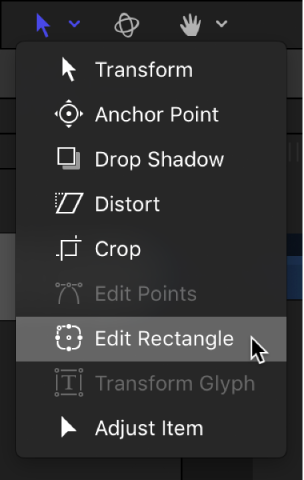
The shape or mask layer’s onscreen control points become active.
In the canvas, drag the control points to modify the shape of the layer.
For information on creating and adjusting simple masks and shapes, see Draw simple shapes and Draw simple masks.
After you create the complex shape or mask, click and hold the transform tools pop-up menu in the canvas toolbar, then choose Edit Points.
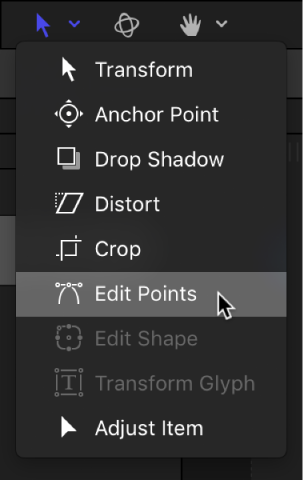
Note: You can also double-click the shape or Control-click the layer, then choose Edit Points from the shortcut menu.
The layer’s control points become active.
In the canvas, drag the control points (or the tangent handles attached to each control point) to modify the shape.
For information on creating complex shapes, see Complex shapes and masks overview. For information on adjusting complex shapes, see Edit control points overview.