
If you’ve already recorded tracking data (using the Analyze Motion behavior, for example), you can load that data into a Match Move, Stabilize, or Unstabilize behavior in your project. Likewise, if your project contains animation (keyframes or an applied behavior), you can load that animation data into a tracking behavior. When you do so, motion data from one object is applied to another object in your project.
In the Layers list, select an object to receive tracking or animation data.
Click Behaviors in the toolbar, choose Motion Tracking, then choose Match Move, Stabilize, or Unstabilize.
The new tracking behavior is added to the Layers list, under the selected object. If your project already contains tracking data or animation data (from an Analyze Motion behavior or from keyframed animation, for example), that data is automatically applied to the new behavior (when the new behavior is above the object with tracking or animation data in the Layers list). And the source of the data appears in the Behaviors Inspector and HUD (in the Source well).
If the Source well is empty, you must manually apply tracking or animation data, as described in the next step.
To manually apply tracking data to the new behavior, do one of the following:
In the Behaviors Inspector or HUD, click the Action pop-up menu (with a gear), then choose a new source for tracking data.
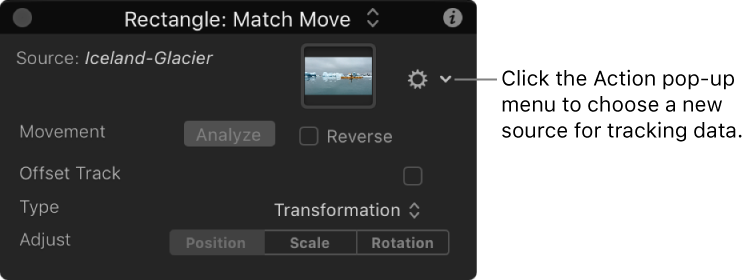
From the Layers list, drag a tracking behavior, footage with tracking data, or an animated object to the Source well in the Behaviors Inspector or HUD.
In the Layers list drag a tracking behavior, footage with tracking data, or an animated object onto the new tracking behavior in the Layers list.
Tracking or animation data is applied to the new behavior, and the source of that data (a video clip or animated object) appears in the Source well in the Behaviors Inspector or HUD.
Note: To clear a Source well, drag the item away from the well, then release the mouse button.