Share menu options are configured to provide results that work well for common situations. However, at times you might need to customize the settings. Compressor, Apple’s professional transcoding application that works with Motion, gives you maximum control over media-conversion specifications and encoding workflows.
Important: To export using Compressor, you must have Compressor installed. Compressor must be purchased separately. For more information, see the Compressor website.
Here are some ways you can use Compressor:
You can send your project to Compressor using the Share > Send to Compressor command, to take advantage of the options available in Compressor to customize your output.
You can apply Compressor settings (either the Apple-supplied setting or custom settings you create) in Motion via the Share > Export Using Compressor Settings command. Exporting a project this way lets you render your project using Compressor settings without opening your project in Compressor. Each Compressor setting you select results in an additional version of your project being rendered. After you choose settings and click Save, your project is rendered in the background.
Do one of the following:
Choose Share > Send to Compressor.
On the right side of the toolbar, click Share, then choose Other Destinations > Send to Compressor.
Compressor opens, adding the project to the batch area.
In Compressor, click Add Outputs, select one or more output settings, then click Start Batch.
For more information, see Compressor Help.
Do one of the following:
Choose Share > Export Using Compressor Settings.
On the right side of the toolbar, click Share, then choose Other Destinations > Export Using Compressor Settings.
In the window that appears, select a setting from one of the folders.
You can search for a specific setting, such as H.264 or 1080p, in the Search field that appears below the project preview.
Select Open with Application to have the exported file automatically open.
If you’ve set In and Out points in the Timeline, click the Duration pop-up menu to choose whether to export the entire project or the play range (the portion between the In and Out points).
To see details about files to be output, click Summary.
Click Next.
Enter a file name, choose a save location for the output files, then click Save.
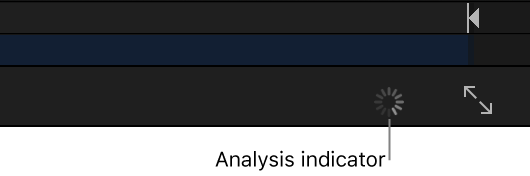
Your project begins rendering, as shown by a analysis indicator on the right side of the canvas toolbar.