
In addition to experimenting with tracker parameter settings, there’s a basic technique to correct track points that become obscured by moving offscreen or by an object passing in front of them.
When a reference pattern becomes obscured, use the Offset Track checkbox to move the tracker, picking a new reference pattern in a different area from the original reference pattern. The offset between the original reference pattern and the new pattern is calculated to maintain continuity in the resulting track path. Even though one region is examined, the points are saved in another region. The second tracking pattern should travel in the same direction as your original pattern.
Move the playhead to the frame where you want to begin the offset track.
When a track is lost during an analysis, Motion jumps back to the frame where the track failed. The bad track point is usually identified by an “x” in the canvas.
Select the Offset Track checkbox in the Behaviors Inspector or HUD.
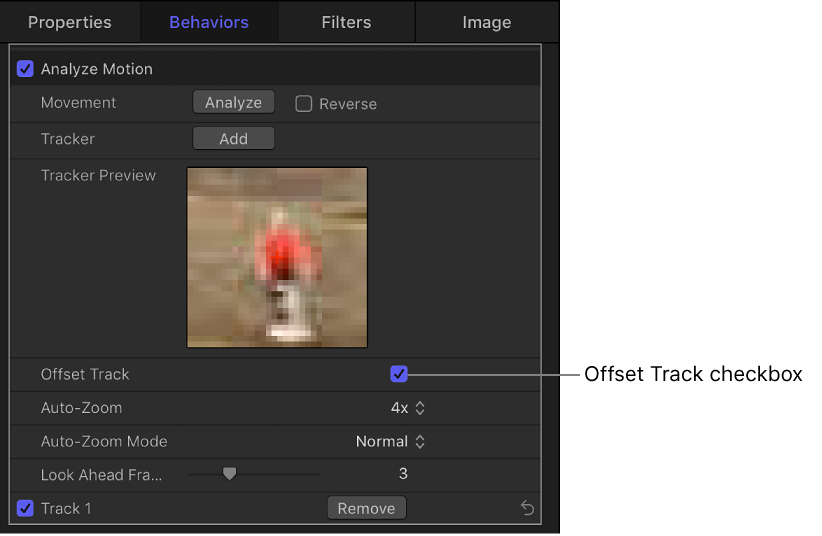
Note: Offset Track is available in the Analyze Motion, Match Move, Stabilize, Track Points, and Track behaviors. Before the parameter becomes available in the Stabilize behavior, you must manually add a tracker using the Add button in the Inspector.
In the canvas, drag the tracker (the crosshair in the circle) to a new, unobscured reference pattern.
Click Analyze to restart the motion analysis.
Motion continues to analyze the trajectory of the original track point, based on the movement of the new offset reference pattern.
Tip: When you use the Offset Track feature, make sure that the new reference pattern is as close to the original reference pattern as possible. Ideally, the offset reference pattern should share the same motion as the original reference pattern.