The 3D view tools in the upper-right corner of the canvas become available after you add a camera to your project. Use these tools to modify the position and orientation of reference and scene cameras, thereby changing your view of objects in 3D space.
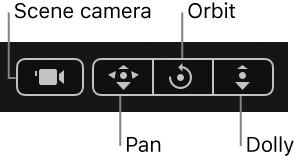
A scene camera indicator (a gray camera icon) appears to the left of the 3D view tools when a scene camera is the active camera. This icon is a reminder (not a button or control) that when you use the 3D view tools, you are moving the scene camera, which affects your project’s output.
Do one of the following:
Pan: Drag over the leftmost control to move the camera along the X and Y axes relative to the current view.
Orbit: Drag over the middle control to orbit the camera around the selected scene object. If nothing is selected, the camera orbits around its focal plane. For more information on the camera focal plane, see Controls in the Camera Inspector. Orbit can affect X, Y, and Z Position values, as well as X and Y Rotation values.
Note: If you use the orbit control to change an orthogonal reference camera, an asterisk appears next to the view’s name in the Camera pop-up menu, indicating that the view is no longer a true orthogonal view.
Dolly: Drag over the rightmost control to dolly the camera, moving it along the Z axis relative to the current view.
Tip: Double-clicking a 3D view tool resets all parameters that can be affected by the tool.
Do one of the following:
To adjust the camera in increments of 10, press and hold the Shift key while dragging in the Pan, Orbit, or Dolly controls.
To adjust the camera in increments of .01, press and hold the Option key while dragging in the Pan, Orbit, or Dolly controls.
Do one of the following:
Pan: Drag in the canvas while pressing and holding the Option key and the right mouse button.
Orbit: Drag in the canvas while pressing and holding the Command key and the right mouse button.
Dolly: Drag in the canvas while pressing and holding the Command key, the Option key, and the right mouse button.
Do one of the following:
Double-click the Pan, Orbit, or Dolly tool.
Click the Camera pop-up menu (in the upper-left corner of the canvas), then choose Reset View.
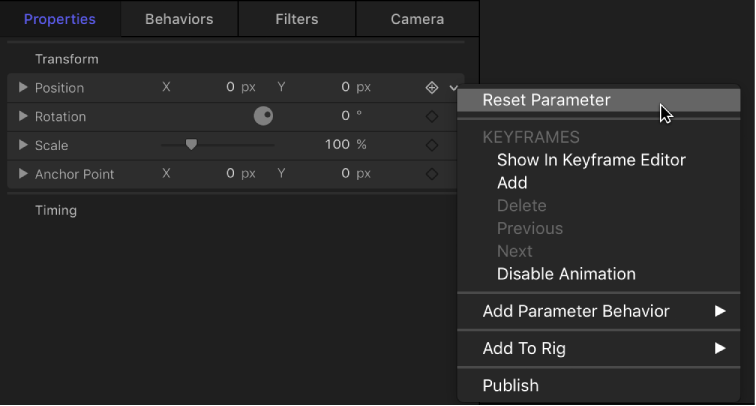
In the Properties Inspector for the camera, click the Animation menu in a parameter row (the down arrow that appears when you move the pointer over the right side of the row), then choose Reset Parameter.