
The canvas dynamic guides and control point snapping help you align selected points with other objects.
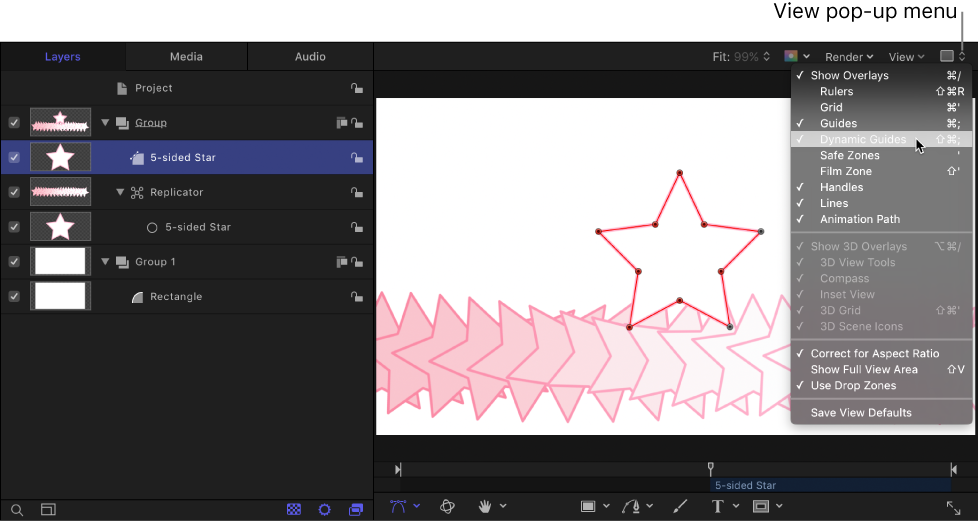
Choose View > Overlays and make sure the Dynamic Guides menu item is checkmarked.
Choose View > Snap and make sure the Snap menu item is checkmarked.
In the canvas, Layers list, or Timeline, select the shape to edit.
In the canvas toolbar, click and hold the transform tools pop-up menu, then choose Edit Points.
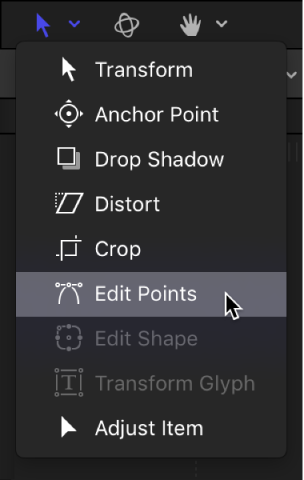
Note: In the canvas, you can also Control-click a shape and choose Edit Points from the shortcut menu.
In the canvas, drag a control point.
Yellow guides appear when the selected control point aligns with the edges or center of the original shape, the edges or center of other objects, or the center of the canvas.
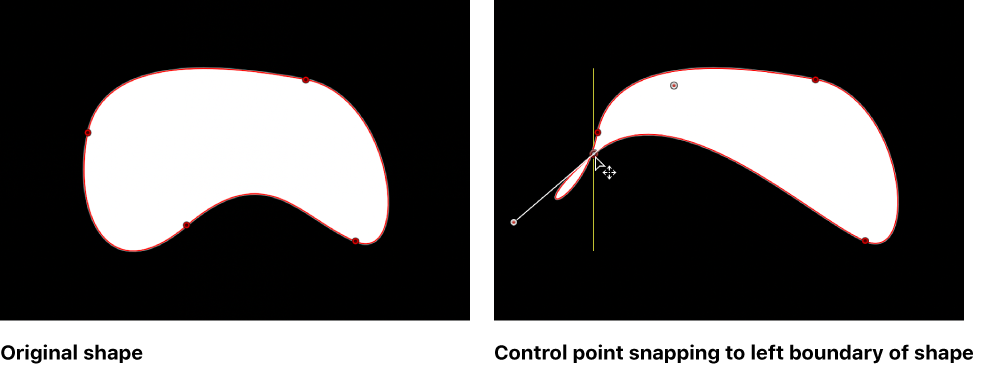
You can temporarily disable snapping to allow for subtle shape adjustments.
Do one of the following:
Press N to turn off snapping; press N again to turn snapping back on.
As you begin to move the selected control point, press and hold the Command key to turn off snapping as you drag the point.
Choose Motion > Preferences (or press Command-comma).
In the Canvas pane, click the Snap Objects At Their pop-up menu, then choose an option.