
The following section describes how to use a shape as the source for a text path.
Import or draw the shape you want to use as the path source.

Select text i n the Layers list, canvas, or Timeline.
In the Layout pane of the Text Inspector, click the Layout Method pop-up menu, then choose Path.
In the Path Options section of the Layout pane, click the Path Shape pop-up menu, then choose Geometry.
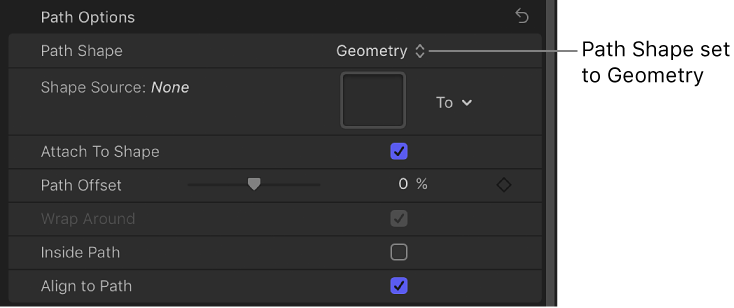
The Shape Source well appears in the Inspector.
From the Layers list, drag the shape to the Shape Source well.
When the pointer becomes a curved arrow, release the mouse button.
A thumbnail of the shape appears in the well and the shape is used as the source shape for the text path.
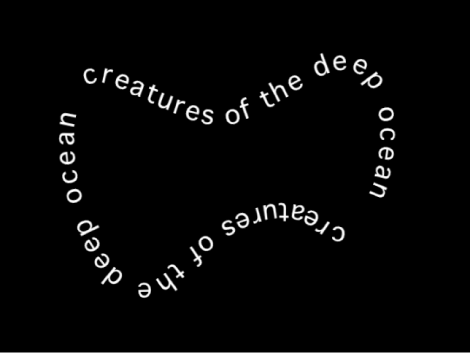
Note: You might want to disable (deselect) the original source shape in the Layers list so it’s not visible in your project.
In the Layout pane of the Text Inspector, click the To pop-up menu (next to the Shape Source image well) and choose a different object to use as the text path’s shape source. All shapes or masks in the project appear in this pop-up menu.