
The following tasks are useful when editing text format. For a complete list of available controls, see Format controls in the Text Inspector.
Do any of the following:
Change font size: Drag the Size slider in the Basic Formatting controls.
Scale the text: Drag the Scale slider in the Advanced Formatting controls.
Click the disclosure triangle to reveal separate X and Y scale controls.
Note: To scale the text as a layer, select text, then drag a scale handle in the canvas.
In the Advanced Formatting controls, do any of the following:
Rotate text characters: Adjust the Rotation dial.
Click the disclosure triangle to expose separate X, Y, and Z rotation controls.
Shear text characters: Drag the Slant slider.
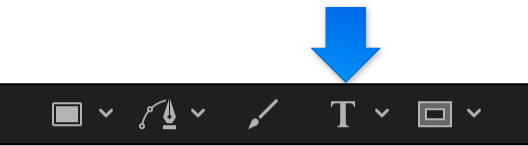
In the canvas toolbar, click the Text tool (or press T).
In the canvas, click between the characters you want to adjust, then do one of the following:
In the Format pane of the Text Inspector, drag the Kerning slider or adjacent value slider to set a kerning (character spacing) value.
Press Option-Command-Right Bracket (]) to increase the space between characters by one-pixel increments.
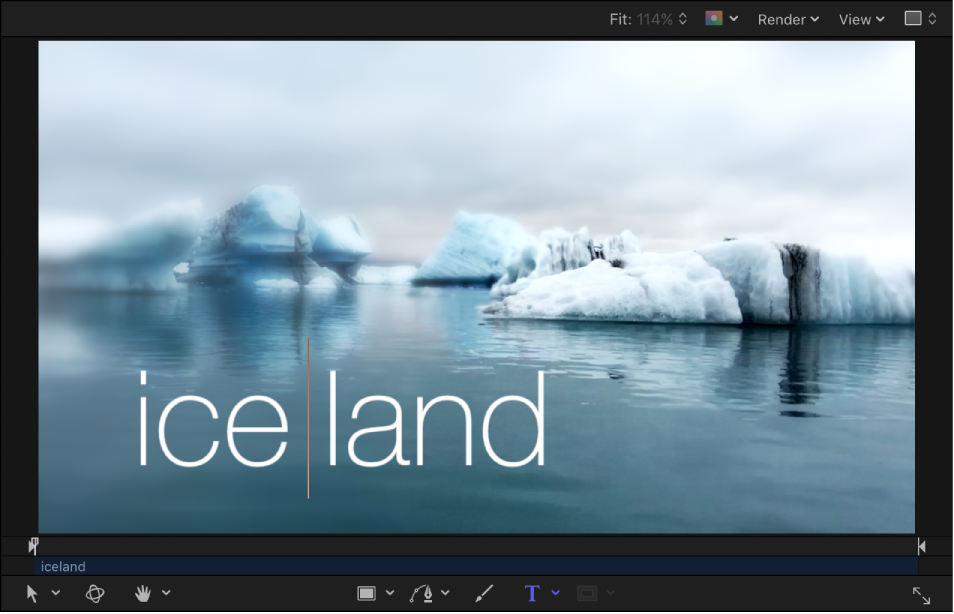
Press Option-Command-Left Bracket ([) to reduce the space between characters by one-pixel increments.