
Motion allows paragraph-formatted text to contain an unlimited number of tabs to control word spacing in text. By default, text created in Motion has no tabs. Adding, moving, and removing tabs is done in the canvas—but you can also move tabs by modifying their values in the Inspector. When you import a Rich Text Format (RTF) file, tabs in the RTF file are retained in the Motion project and appear in the Tabs section of the Layout pane of the Text Inspector.
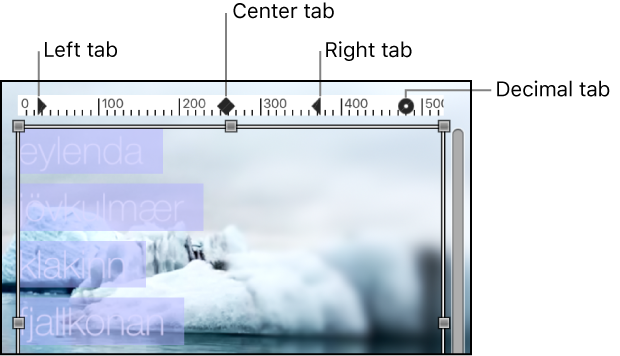
There are four types of tabs:
Left tab: Aligns the left edge of the text with the tab.
Right tab: Aligns the right edge of the text with the tab.
Center tab: Aligns the center of the text with the tab.
Decimal tab: Aligns decimal points in numbers on multiple lines.
The tasks below use paragraph-style text. For information about creating paragraph-style text, see Add paragraph-style text with margins that wrap.
Double-click paragraph-style text in the canvas to display the text-entry field.
In the ruler above the text-entry field, do one of the following:
Click to add a left tab.
Double-click to add a center tab.
Control-click and choose a tab type from the shortcut menu.
When you add a tab, its black icon appears in the ruler.
Double-click paragraph-style text in the canvas to display the text-entry field.
Double-click a tab icon in the ruler above the text-entry field.
The tabs cycle through the right, center, left, and decimal types.
Double-click paragraph-style text in the canvas to display the text-entry field.
In the Tabs section of the Layout pane of the Text Inspector, click the Tab type pop-up menu, then choose an option.
The tabs icon is updated in the ruler in the canvas.
In the Layout pane of the Text Inspector, make sure Paragraph (or Scroll) is selected in the Layout Method pop-up menu.
Double-click paragraph-style text in the canvas to display the text-entry field.
Do one of the following:
In the canvas, drag a tab (the small black icon) in the ruler above the text-entry field.
In the Layout pane of the Text Inspector, use the Tabs controls to adjust the position and layout of the tabs.
The affected text is repositioned to the tab.
Double-click paragraph-style text in the canvas to display the text-entry field.
Drag the tab (the small black icon) away from the ruler and release the mouse button.
The tab is removed from the ruler in the Tabs controls in the Layout pane of the Text Inspector.