
You can change the color of text (or apply a gradient to text) using the color controls in the Appearance pane of the Text Inspector. You can also make basic changes to text color in the Text HUD).
Select text in the Layers list, canvas, or Timeline.
In the Appearance pane of the Text Inspector, make sure that the “Fill with” pop-up menu is set to Color.
Do one of the following:
Click the Color well, then use the Colors window to set the text color.
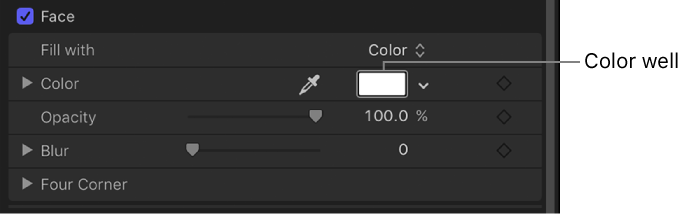
Click the down arrow to the right of the color well (or Control-click the color well), then click in the pop-up color palette to select a color; or click in the lower palette to set the color to a grayscale color.
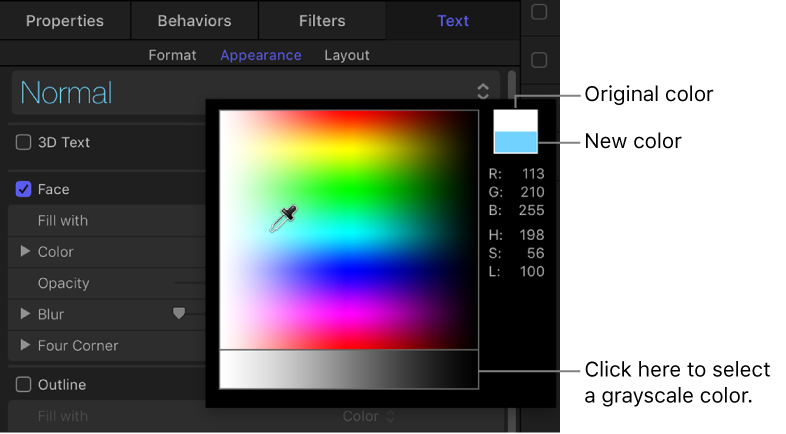
Click the eyedropper tool to the left of the Color well, then click a color in the canvas.
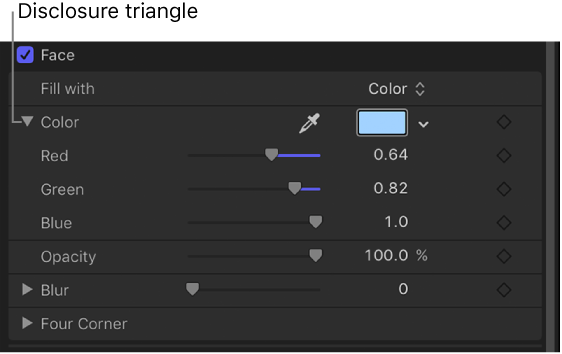
Click the Color disclosure triangle to show the color channel parameters, then use the sliders to adjust each color channel.
Select text in the canvas, Layers list, or Timeline.
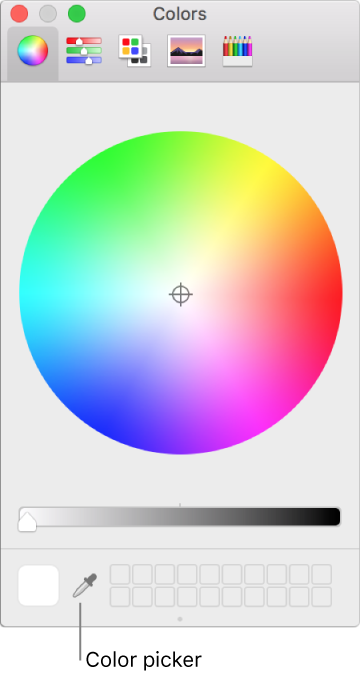
In the Text HUD (if it’s not displayed, press F7 or D) click the color well, then choose a new color in the Colors window.
The text is dynamically updated as you select a color.
Note: To select a color from the canvas (or anything on the desktop), click the color picker in the Colors window, position the picker over the color you want to select, then click again.
In the Inspector, you can apply a gradient fill to text, then customize or animate the gradient in the Gradient editor.

Select text in the canvas, Layers list, or Timeline.
In the Appearance pane of the Text Inspector, click the “Fill with” pop-up menu, then choose Gradient.
In the Inspector, the Color controls are replaced with the Gradient editor. The default gradient is white and blue (Atlantic Blue).
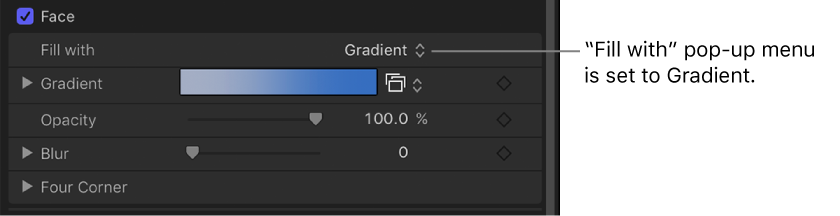
In the canvas, the default gradient is applied to the text.
To customize the gradient, see Gradient editor controls.
Select text in the canvas, Layers list, or Timeline.
In the Appearance pane of the Text Inspector, click the “Fill with” pop-up menu, then choose Gradient.
Click the Gradient preset pop-up menu (on the right side of the Gradient row), then choose a preset gradient.
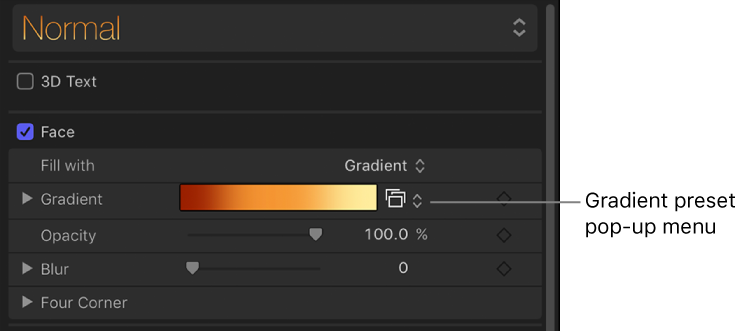
The selected gradient is applied to the text.
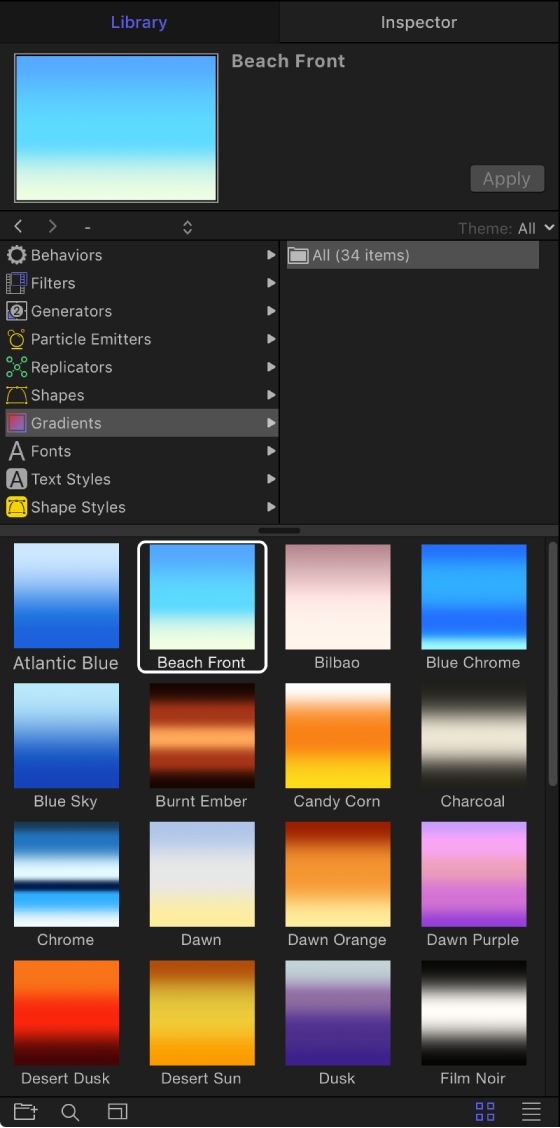
In the Library, click the Gradients category.
In the stack, select a gradient.
A preview of the selected gradient appears in the preview area.
Do one of the following:
Drag the gradient to text in the canvas, Layers list, or Timeline.
Make sure text is selected in the canvas, Layers list, or Timeline, then click Apply in the preview area.
The gradient is applied to the text.