
Although you can manually create nearly any curve shape to build the animation you want, the Keyframe Editor provides tools to control the automatic interpolation of curves—that is, the computed values between keyframes. Depending on the interpolation method you choose, you can dramatically alter the shape of animation curves, and therefore the impact of your effects.
To set the interpolation for a curve, you select the keyframe you want to modify, then choose a distribution algorithm. For more information about the preset algorithms, see Curve interpolation methods.
Do one of the following:
Control-click a keyframe in the Keyframe Editor, choose Interpolation from the shortcut menu, then choose a method from the submenu.
Select multiple keyframes, Control-click one of them, choose Interpolation from the shortcut menu, then choose a method from the submenu.
The interpolation method chosen is applied to the entire selection.
Control-click a segment between two keyframes in the Keyframe Editor, choose Interpolation from the shortcut menu, then choose a method from the submenu.
Only the segment between the surrounding two keyframes is affected by the interpolation method you choose. You can set different interpolation methods for other segments of the same curve.
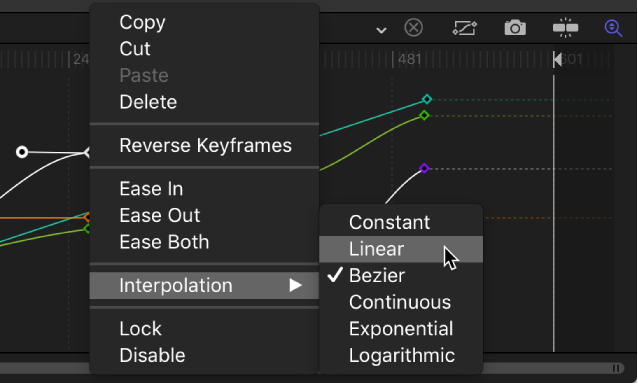
When different interpolation methods are applied to segments of an animation curve, the methods used in the curve appear with a dash next to their name in the Interpolation submenu (in the Keyframe Editor parameter list).
In the Keyframe Editor parameter list, open the Animation menu for the parameter, then choose a method from the Interpolation submenu.
The Animation menu (a down arrow) remains hidden until you position the pointer over the far-right side of the parameter row you want to modify.
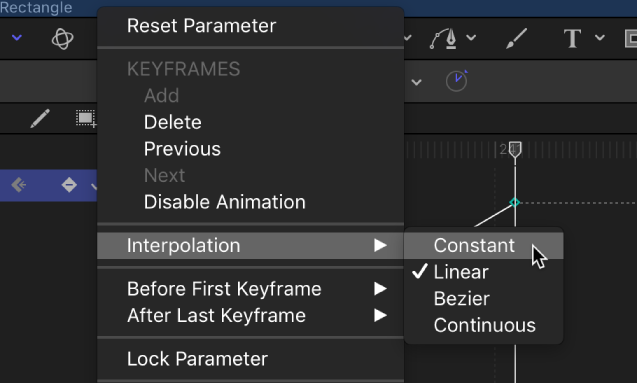
The selected interpolation method is applied to that parameter’s curve.
In the parameter list of the Keyframe Editor, Shift-click to select multiple parameters.
In the Keyframe Editor parameter list, open the Animation menu for the parameter, then choose a method from the Interpolation submenu.
The Animation menu (a down arrow) remains hidden until you position the pointer over the far-right side of the parameter row you want to modify.