
Although you can animate basic object properties by dragging onscreen controls in the canvas, many other parameters are accessible only in the Inspector. Each section of the Inspector contains keyframeable parameters. For example, you can animate the position and shape of a mask, the color and styles of a text object, or the options in a generator. The parameters that are keyframeable depend on which object is selected and which effects are applied to that object.
In the canvas, select the object to keyframe.
In the timing toolbar, click the Record button (or press A) to turn on keyframe recording.
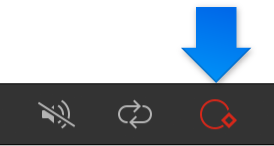
Drag the playhead to the frame where you want the effect to begin.
Open the Inspector containing the parameter you want to modify (the Properties Inspector, in this example).
Note: When the Record button is turned on, animatable parameter values appear red.
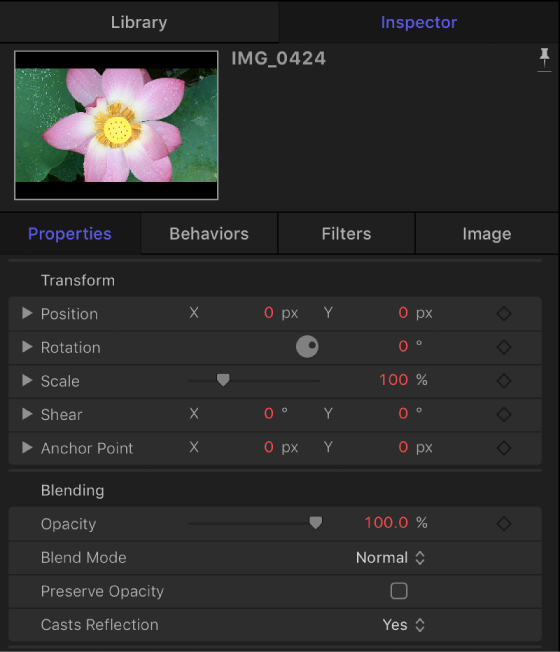
Set the parameter to the beginning value.
Move the playhead to a new position.
In the Inspector, change the parameter to a new value.
Click the Record button (or press A) again to turn off keyframe recording.
The parameter now changes over time.
In the canvas, select the object to keyframe.
Place the playhead on the frame where you want the effect to begin.
Open the Inspector containing to the parameter you want to modify.
Set the parameter to the beginning value, then do one of the following:
Press Control-K.
In the Inspector, click the parameter’s Animation menu (the down arrow that appears when you place the pointer over the right side of a parameter row), then choose Add.
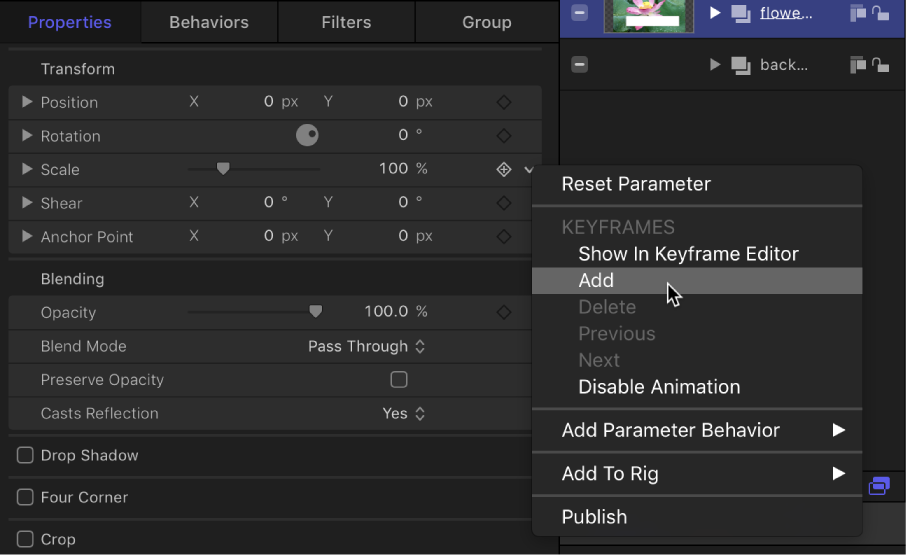
In the Inspector, Control-click the parameter name, then choose Add from the shortcut menu.
In the Inspector, click the Add/Delete Keyframe button (the diamond outline) on the far-right side of the parameter you want to keyframe.
Note: When you move the pointer over the Add/Delete Keyframe button, a plus sign appears inside the diamond; after you add a keyframe, the diamond turns solid gray.
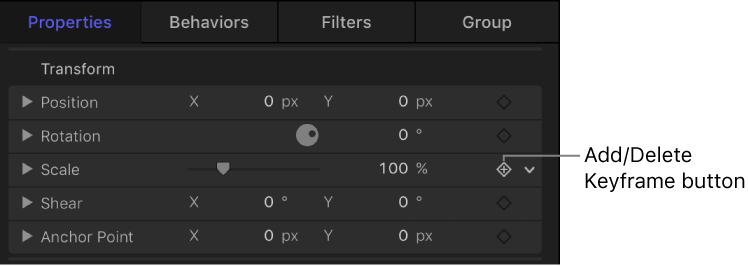
A keyframe is added at the current frame, and the parameter appears red in the Inspector.
Move the playhead to a new position.
In the Inspector, change the parameter to a new value.
The parameter now changes over time.