
After you add behaviors to an object, there are a number of ways to copy and move them among the other items in the Timeline or Layers list. Behaviors can be cut, copied, pasted, or duplicated like any other item in Motion. When you cut or copy a behavior in the Timeline or Layers list, you also copy the current states of that behavior’s parameters.
When you duplicate an object, you duplicate all behaviors applied to it. This way, if you’re creating a project with a number of objects that use the same behavior, you can apply that behavior to the first instance of that object, and then duplicate that object as many times as necessary.
Select a behavior in the Layers list or Timeline.
Do one of the following:
Choose Edit > Cut (or press Command-X) to remove the behavior and place it on the Clipboard.
Choose Edit > Copy (or press Command-C) to copy the behavior to the Clipboard.
Select an object in the Layers list or Timeline.
Choose Edit > Paste (or press Command-V).
The cut or copied behavior is applied to the selected object, with all its parameter settings intact.
You can also move a behavior from one object to another in the Layers list or Timeline by dragging it to a new position.
In the Layers list or Timeline, drag a behavior from one object and drop it on top of another.
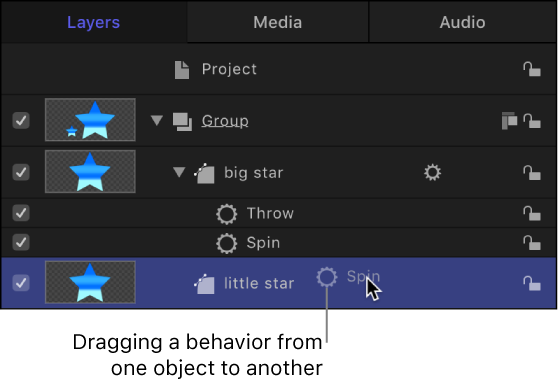
Note: If you move a Parameter behavior to another object, it’s applied to the same parameter it affected in the previous object—as long as the corresponding parameter exists. If the parameter does not exist, the parameter assignment (Apply To field) is set to None.
You can also duplicate a behavior in place.
Select a behavior in the Layers list or Timeline.
Do one of the following:
Choose Edit > Duplicate (or press Command-D).
Control-click the behavior to duplicate, then choose Duplicate from the shortcut menu.
Note: You can also use the Cut, Copy, and Paste commands from the shortcut menu to duplicate a behavior.
You can also duplicate a behavior and apply the duplicate to another object in the Layers list or Timeline.
In the Layers list or Timeline, Option-drag a behavior to another object.
The behavior is duplicated and applied to the second object, and the original behavior is left in its original location.
In the Layers list or Timeline, drag the behavior up or down in the list of nested behaviors applied to the same object.
A position indicator appears.
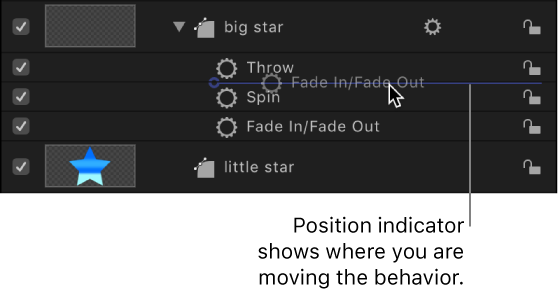
When the position indicator is in the correct row, release the mouse button.
All behaviors combine according to a predetermined order of operations (see About behavior order of operations) regardless of their order in the Layers list. Therefore, reordering the behaviors has no effect on the resulting animations, with a few exceptions:
The Stop behavior suspends the activity of all behaviors beneath it in the Layers list that affect the same parameter. The Stop behavior has no effect on behaviors above it in the Layers list.
Parameter behaviors are applied in the order that they are added, from the bottom to the top in the Layers list, so you need to think about how you are building the operation. For example, imagine a circle shape with an X Position of 50 in the canvas. If you apply a Rate Parameter behavior with a positive Rate value to the X Position of the circle, the circle will move to the right from its starting X Position of 50. If you then apply a Negate Parameter behavior to the circle’s X Position, the circle will start at –50 in the canvas and move to the left. The effect you see in the canvas is the result of each behavior acting upon the previously applied behavior: an X Position value of 50 is modified by the Rate behavior (in a positive direction), which is in turn modified by the Negate behavior, changing the X Position and rate to negative values.
If you swap the order of Rate and Negate in the Layers list, Negate is processed first. The circle’s X Position value of 50 is turned into –50. This is then passed as the input to Rate, which moves the circle in a positive direction. Now the circle begins at the –50 X Position in the canvas and moves to the right.