
Apply the Wind behavior to an object to animate its position and move it in a specified direction. Unlike the Throw behavior, the velocity specified by the Wind behavior is a continuous force, and its parameters can be keyframed to achieve gradual changes in speed and direction.
The Wind behavior is better than the Throw behavior when you want to vary the speed of the affected object. You can apply another behavior (such as Randomize or Ramp) or keyframe the Velocity parameter of the Wind behavior to vary the speed and direction of the object. You cannot make gradual changes in speed or direction with the Throw behavior.
Adjust this behavior using the controls in the Behaviors Inspector:
Affect Subobjects: A checkbox that appears when this behavior is applied to an object that contains multiple objects, such as a group, a particle emitter, a replicator, or a text layer. When this checkbox is selected, all objects enclosed in the parent object are affected individually. When this checkbox is deselected, all objects enclosed in the parent object are affected by the behavior together.
Air Thickness: A slider and value slider that adjust how fast the object accelerates on the X, Y, or Z axis when the speed is changed. Lower values (simulating thinner air) have less effect when pushing the object, so it takes longer to get up to speed. Higher values (thicker air) have more effect and push the object up to speed more quickly.
Velocity: A slider and value slider that adjust the speed on the X, Y, or Z axis where the simulated air is blowing the object. Higher values result in faster motion.
The HUD lets you specify the direction and speed of the Wind behavior by dragging an arrow in a circular region. The direction of the arrow defines the direction of movement in X and Y space, and the length of the arrow defines speed (velocity). A slider lets you adjust the scale of the HUD control, increasing or decreasing the effect the control has over the object.
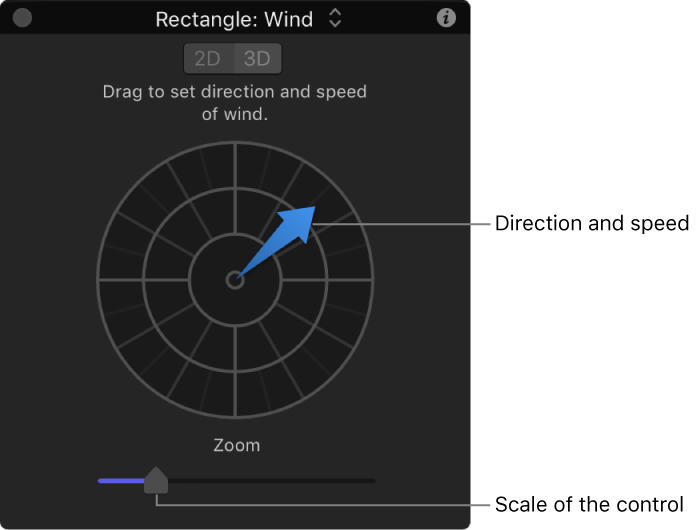
Press the Shift key while dragging the arrow to constrain the direction to 45-degree angles. Press the Command key to change the arrow’s direction without affecting its length.
When you click the 3D button, a center arrow control defines the direction the object is “blown” by the wind in 3D. The Speed slider increases or decreases the velocity of the blown object.
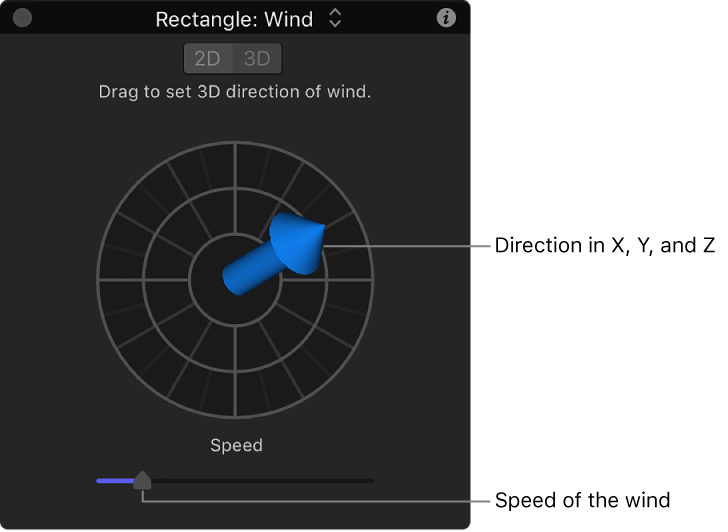
Note: The maximum speed you can define with the HUD is not the maximum speed possible. Higher values can be entered into the Velocity parameter in the Behaviors Inspector.