
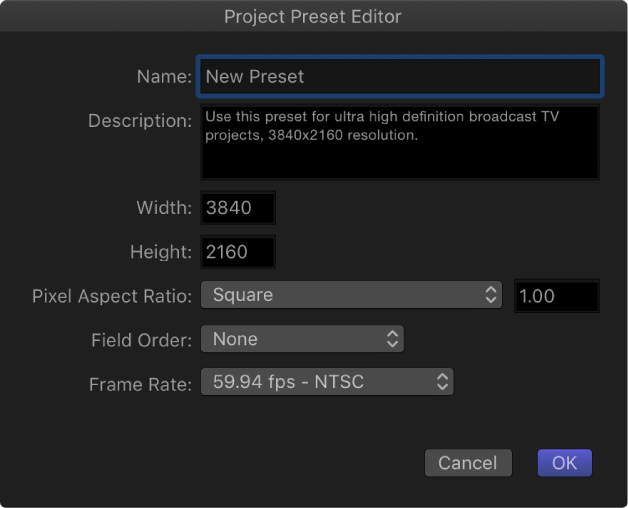
You make changes to a project preset in the Project Preset Editor. This window opens when you click the Add Preset button (+) or attempt to edit any of the existing presets in the Presets pane of the Motion Preferences window. For more information on how to create, edit, or delete project presets, see Create, edit, and delete project presets.
Note: Locked presets cannot be edited. If you attempt to edit a locked preset, an alert dialog appears, a duplicate copy of the preset is made, and your edits are applied to the duplicate.
The Project Preset Editor contains the following settings:
Name: An editable field containing the name for the preset.
Description: A field containing descriptive text to identify the preset. You can enter your own descriptive text in this field. The new text will appear in the summary box in the Preset pane of Motion Preferences.
Note: In the lower-right corner of the Project Browser, only the resolution, field order, and aspect ratio appear—the descriptive text (or preset name) does not appear.
Width and Height: Fields to set the frame size for the preset.
Pixel Aspect Ratio: A pop-up menu that sets the pixel aspect ratio for the preset. This setting should match the type of media in your project.
Field Order: A pop-up menu that sets the field order for your project.
Frame Rate: A pop-up menu that sets the frame rate for your preset.