Edit in the group track

There are a variety of editing tasks you can perform directly in the group track. This is equivalent to making similar edits to the various tracks contained within the group, but it’s sometimes more efficient to make such changes in the group track instead.

Move all objects in a group at once

Move a single object in a group

  1. Click an area of the lower group bar where a single object is visible.

    That object is highlighted in the group track.

  2. Drag the section left or right to move the object in the group forward or backward in time.

    The selected object moves in time.
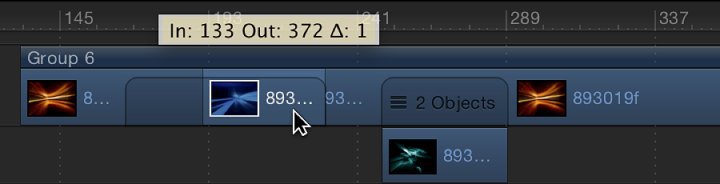
    Timeline showing a single object being moved on the group bar

Move overlapping (composited) objects in a group

Trim objects in a group

Change the duration of the group independently of the objects in it

Note: After you manually change the length of the upper group bar, it’s no longer updated when you add or modify the objects to the group. To restore automatic updating, realign the edges of the upper group bar with the edges of the first and last clips in the group.

Slip a video layer via the group track

Note: You can only slip a layer if it has been trimmed first. For more information on slipping, see Slip video layers in the Timeline track area.

Dragging right slips the video clip to an earlier portion of the source media. Dragging left slips the video clip to a later portion of the source media. Either way, the position of the clip in the Timeline and its duration are unchanged.