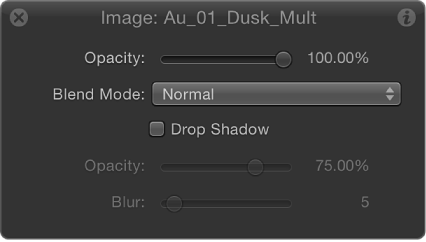

Like the Inspector, the HUD (heads-up display) is contextual and changes its controls based on the selected object. For example, when you select an image layer, its HUD contains opacity, blend mode, and drop shadow controls.
When you select a shape layer, its HUD contains additional controls for adjusting fill, outline, width, feathering, and so on. When you apply an effects object to a layer or group (a filter, behavior, particle emitter, and so on), HUDs for effects also become available. For more information, see the chapters in Motion help covering those subjects.
Do one of the following:
Select a layer or group, then choose Window > Show HUD (or press F7).
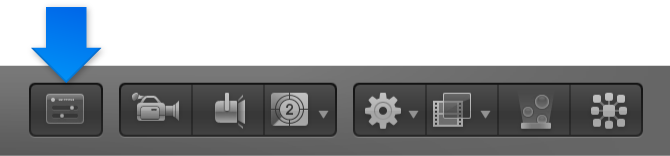
Select a layer or group, then click the Show/Hide HUD button in the toolbar (to the right of the timing display).
Press D.
Do one of the following:
Click the downward arrow in the HUD title bar to list all possible HUDs that can be displayed for the selected object, then choose the HUD to view from the pop-up menu.
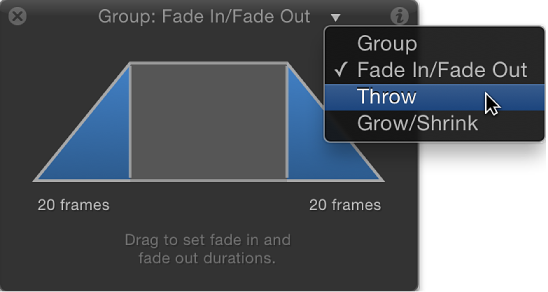
Press D to cycle through all HUDs for the selected object. To cycle the HUDs in reverse, press Shift-D.
The HUDs are cycled in the order in which the effects were applied.
When you select multiple objects of the same type, a combined HUD appears (with “Multiple Selection” displayed in its title bar).
Most of the time, the HUD displays a subset of the parameters visible in the Inspector for the selected object. If you’re working in the HUD, you can jump to the Inspector to access the remainder of the controls for that object.
Click the Inspector icon (the “i”) in the upper-right corner of the HUD.
The Inspector corresponding to the HUD appears.
For simultaneous adjustment to work, the objects must be the same (such as two Throw behaviors or two shapes).
In the Layers list or Canvas, select the objects (of the same type) to modify.
In the HUD titled “Multiple Selected,” adjust the parameters.