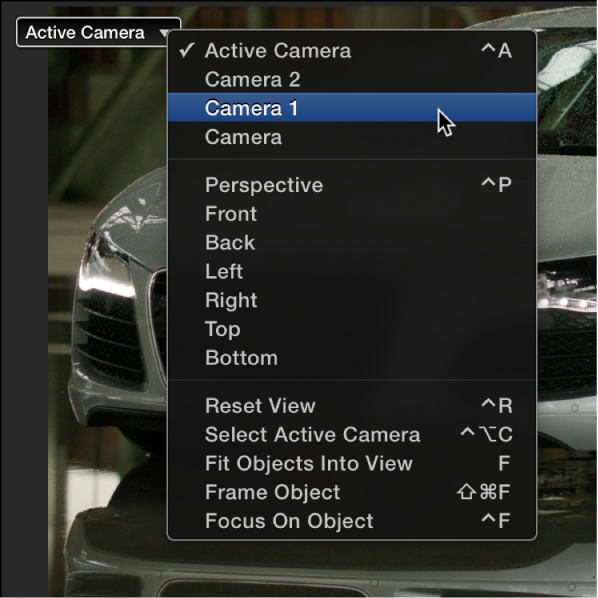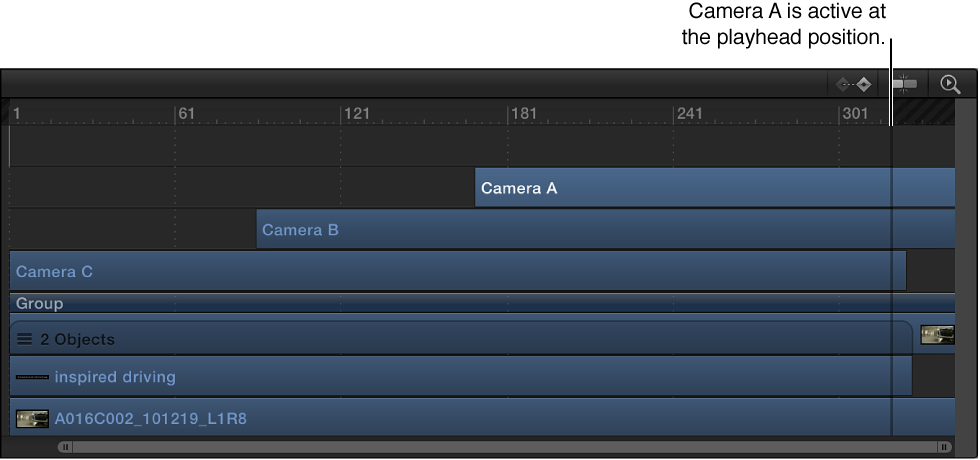

If a scene contains more than one camera, you can set the topmost camera in the Layers list and Timeline to be the active camera at the current frame. Although the active camera is the default camera used for export, you can select any scene camera to export. (The active camera is not the same as the active view. The active view is the last viewport you clicked in when working with multiple viewports.)
Note: Dragging and dropping an object onto the Canvas adds the object to the scene at the focal plane of the current camera. Dragging an object into the Layers list or clicking the Apply button in the preview area of the File Browser positions the object at 0, 0, 0 in the Canvas.
In the Canvas, click the Camera pop-up menu, then choose Active Camera.
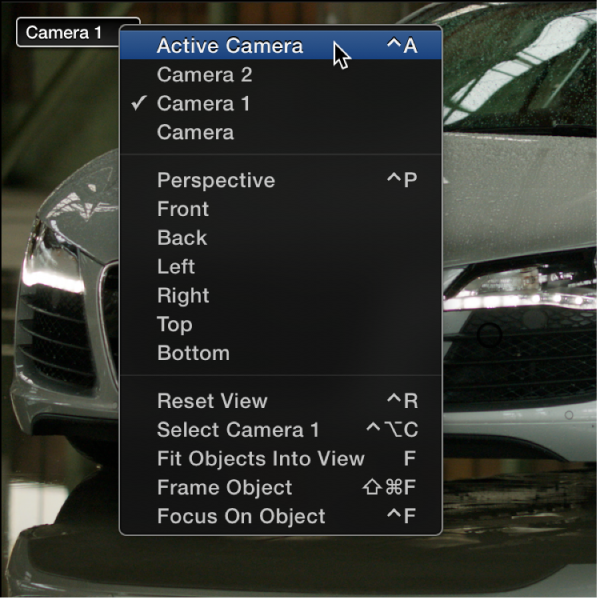
The topmost camera in the Layers list at the current frame becomes the active camera (Camera 2 in the example above).
In the Canvas, click the Camera pop-up menu, then choose a scene camera.