
Outline controls
Use this group of parameters to set the outline attributes of a shape. An activation checkbox turns on or off the outline parameters for a selected shape. By default, this checkbox is deselected for closed shapes and is selected for open shapes and paint strokes. When you select the Outline checkbox, the Brush Type, Brush Color, Brush Opacity, Width, First and Last Point Offsets, Order, and other controls become available.
Brush Type: A pop-up menu that sets the kind of brush used to draw the outline. There are three options:
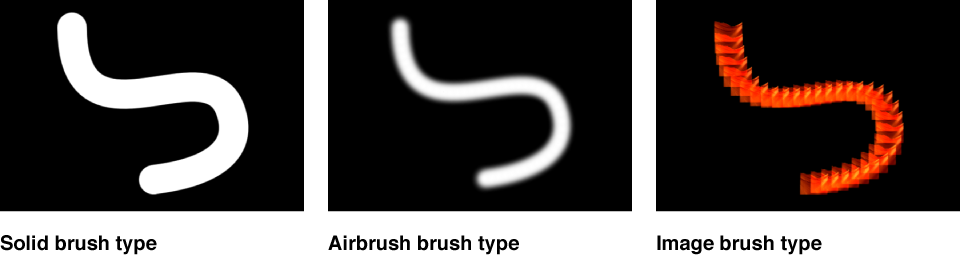
Solid: Creates a solid outline along the shape spline or paint stroke. This is the default setting.
Airbrush: Creates an outline made up of editable brush strokes referred to as dabs. You can set the dabs to be close together so the line appears solid, or you can space the dabs further apart. When Brush Type is set to Airbrush, the Stroke and Advanced panes become available in the Shape Inspector.
Image: Lets you use an image layer in your project as a dab source. When Brush Type is set to Image, the Stroke and Advanced panes become available in the Shape Inspector.
Brush Color: Color controls that let you pick a color to use for the outline or paint dabs. These color controls are identical to the shape Fill Color controls (and all color controls throughout Motion).
Note: When Stroke Color Mode (in the Stroke pane) is set to Color Over Stroke or Pick From Color Range, the Brush Color controls are not available.
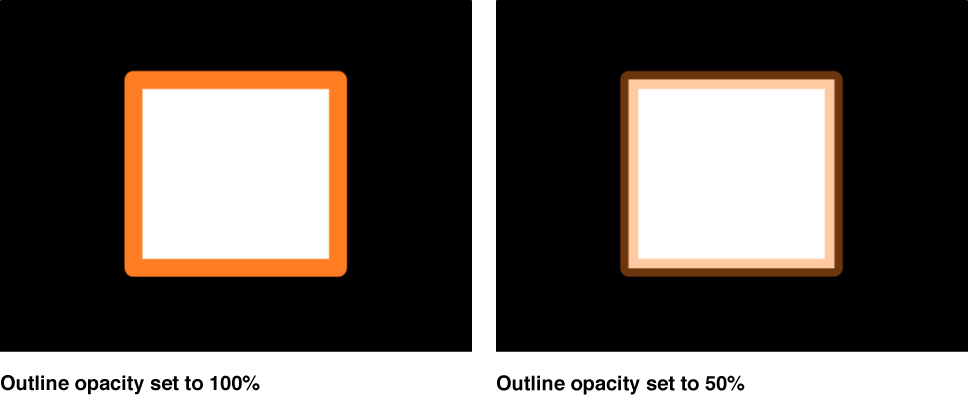
Brush Opacity: A slider that defines the opacity of the entire stroke, regardless of the Brush Type setting.
Note: When Stroke Color Mode (in the Stroke pane) is set to Color Over Stroke or Pick From Color Range, the Brush Color and Brush Opacity parameters are not available. When Stroke Color Mode (in the Stroke pane) is set to Use Brush Color, you can adjust the opacity, in the Stroke pane, to change over the course of the stroke. For more information on using the Opacity Over Stroke parameter, see Stroke pane.
The Brush Opacity control defines a different opacity value for a shape and its outline.
Brush Source: An image well (available when Brush Type is set to Image) that lets you set an image layer in your project as the outline’s brush source. Drag an image, image sequence, QuickTime movie, text object, or shape from the Layers list into the Brush Source image well.
Note: When a movie or image sequence is the brush source, additional parameters appear in the Outline group of controls. For more information, see Style pane movie controls.
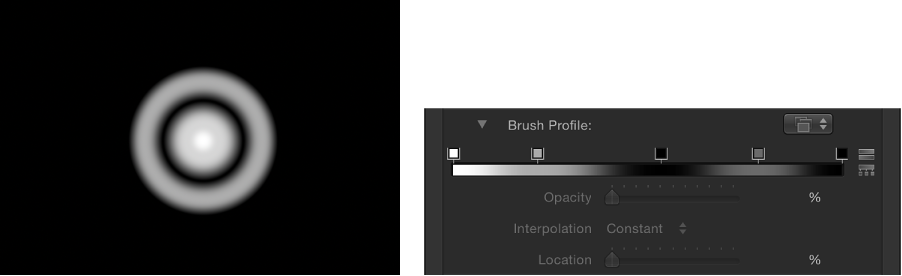
Brush Profile: A gradient editor (available when Brush Type is set to Airbrush) that sets varying levels of opacity within the brush. The brush profile uses the same opacity controls as a standard gradient editor. For more information, see Gradient editor controls. The default Brush Profile gradient creates a soft airbrush.
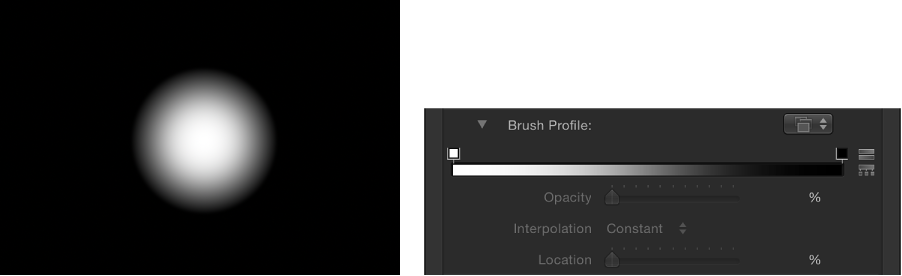
Modify the Brush Profile opacity gradient to create new brush looks.
Width: A slider that changes the width of a shape’s outline or width of a paint stroke’s dabs. On paint strokes, width adjustments alter the size of the dab while also maintaining the spacing between each dab.
Note: If you used the pressure parameters in the Paint Stroke Tool HUD to create variations in the stroke when the stroke was created, adjusting the Width parameter affects the width of the stroke uniformly.
Preserve Width: A checkbox (available when Brush Type is set to Solid) that, when selected, maintains the defined width of the shape outline or paint stroke when the shape or stroke is scaled.
Joint: A pop-up menu (available when Brush Type is set to Solid) that sets how hard corners on a shape’s outline are drawn. There are three options:
Square: All corners are squared off.
Round: All corners are rounded.
Bevel: All corners are cut at an angle.
Start Cap: A pop-up menu (available when Brush Type is set to Solid) to choose the shape of an open outline’s start cap (the shape of the edge of an outline). There are five options:
None: The stroke ends at the control point.
Square: The cap is squared off.
Round: The cap is rounded.
Bevel: The cap is cut at an angle.
Arrow: The cap is a customizable arrow. When Arrow is selected from the Start Cap or End Cap pop-up menus, the Arrow Length and Arrow Width sliders appear.
End Cap: A pop-up menu (available when Brush Type is set to Solid) to choose the shape of an outline’s end cap. There are five options:
None: The stroke ends at the control point.
Square: The cap is squared off.
Round: The cap is rounded.
Bevel: The cap is cut at an angle.
Arrow: The cap is a customizable arrow. When Arrow is selected from the Start Cap or End Cap pop-up menus, the Arrow Length and Arrow Width sliders appear.
Spacing: A slider (available when Brush Type is set to Airbrush or Image) that defines the space between dabs. A lower number creates a more solid line, and a higher number creates a greater distance between dabs.
Additive Blend: A checkbox (available when Brush Type is set to Airbrush or Image) that composites all overlapping dabs together using the Additive blend mode. By default, dabs are composited together using the Normal blend mode. The Additive blend mode occurs in addition to whichever compositing method is already in use (the Blend Mode setting in the Properties Inspector).
Reverse Stacking: A checkbox (available when Brush Type is set to Airbrush or Image) that inverts the order in which the dabs are stacked. To see the effect of this parameter, dabs must be overlapping.
First Point Offset: A slider to offset and animate the start point of the outline. This is very useful for effects such as drawing a line across a map over time.
Last Point Offset: A slider to offset and animate the end point of the outline.
You can manually animate the First Point Offset and Last Point Offset parameters in the Style pane of the Shape Inspector to achieve the same effect as the Write On behavior. (You can also use the Shape Write On behaviors to draw a stroke or outline over time. For more information, see Write On.)
Order: A pop-up menu that sets whether an outline is drawn over or under the shape fill color or gradient. The effect is more apparent with thicker outline widths. There are two menu options:
Over Fill: Outlines appear on top of the selected fill of the shape.
Under Fill: Outlines are obscured beneath the selected fill of the shape.