There are many ways to open an existing Motion project. You can open projects and templates via the Project Browser, the Motion File menu, or the Finder.
In the Project Browser (press Command-N), then select a category in the sidebar to limit which items are displayed in middle of the browser.
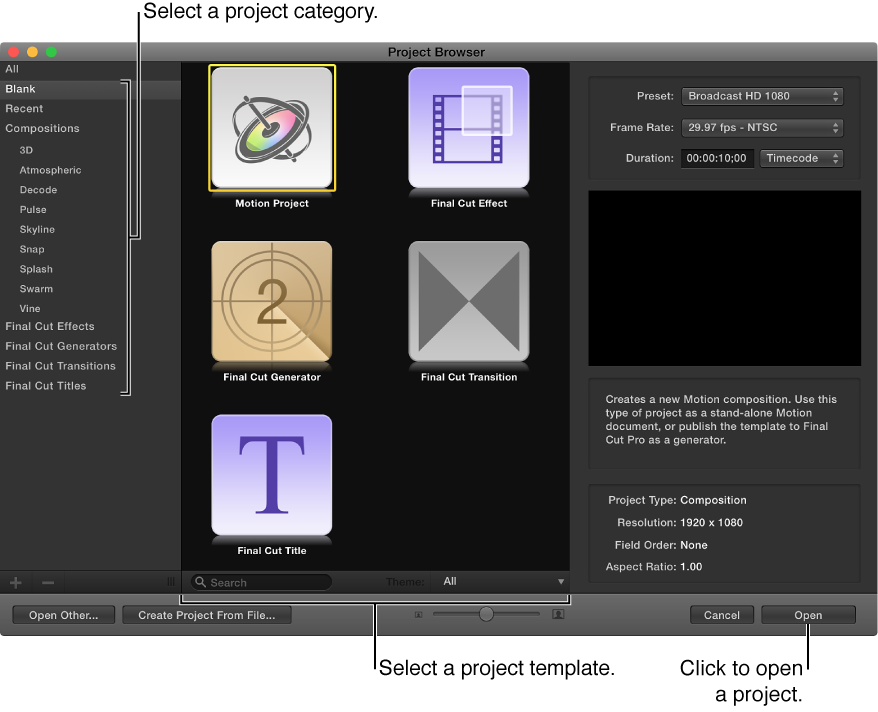
Select an item from the middle of the browser.
A video preview, if available, plays in the preview area on the right.
If necessary, modify the resolution, frame rate, and default duration using the pop-up menus above the preview area.
Click Open.
The Project Browser closes and the project you selected opens in the Motion workspace.
With Motion open, choose File > Open (or press Command-O).
The Open dialog appears.
In the Open dialog, navigate to the project file you want, then click Open.
Using the buttons at the bottom of the Project Browser, you can also open a specific project that doesn’t appear in the Project Browser, but is accessible through the Finder.
In the Project Browser, click Open Other (or press Command-O).
The Open dialog appears.
In the Open dialog, navigate to a Motion project file, select it, then click Open.
Do either of the following:
In Motion, choose File > Open Recent, then choose a project from the submenu.
From the Project Browser, click Recent in the sidebar, select a project from the center of the browser, then click Open.
From the Finder, do one of the following:
Double-click a Motion project file.
Select a Motion project file, then drag it onto the Motion application icon in the Applications folder or in the Dock (if you’ve placed a Motion application icon in the Dock).
Select a Motion project file, then choose File > Open (or press Command-O).
Control-click a Motion project file, then choose Open from the shortcut menu.
The project you selected opens in Motion workspace.
Tip: You can search for Motion projects via Spotlight in the Finder. For more information, see Search for projects using the Finder.
Click the close button in the top-left corner of the project window (or press Command-W).