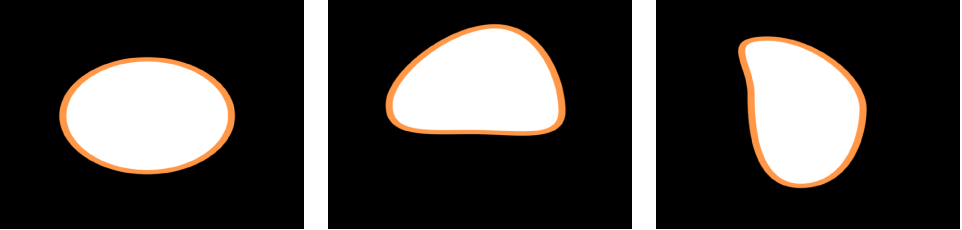

This behavior works similarly to the Randomize behavior, but with a slower effect.
When you apply the Wriggle Shape behavior to a shape, all control points of the shape are affected by default. When you select the behavior in the Layers list, affected control points are highlighted in white on the blue shape behavior spline. To disable control points, click the control points. A disabled point appears blue.
Note: When you apply the Randomize Shape behavior to a simple shape (without control points), a dialog appears asking if you want to convert the shape.
You can adjust the Wriggle Shape behavior using the following controls in the Behaviors Inspector:
Amount A slider (available when Apply Mode—described below—is set to Add, Subtract, or Add and Subtract) that defines the maximum value the Wriggle behavior generates.
Multiplier: A slider (available when Apply Mode—described below—is set to Multiplier) that defines the maximum value the Wriggle behavior generates.
Apply To: A pop-up menu that defines where on the shape the behavior is applied. There are three options:
Points: The control points of the shape are wriggled, changing their position over the duration of the behavior.
Tangents: The control points’ tangent handles (rather than the control points) are wriggled. The control points stay in a fixed position while the curves between the points are animated.
Points and Tangents: Both the control points and tangent handles are animated.
Apply Mode: A pop-up menu that determines how values generated by this behavior are combined with other behaviors and keyframes that affect the same parameter. This provides you with different ways of using a Wriggle behavior to modify a vertex’s preexisting values. There are four options:
Add: Values generated by this behavior are added to other behaviors and keyframes that affect the same parameter.
Subtract: Values generated by this behavior are subtracted from other behaviors and keyframes that affect the same parameter.
Multiply: Values generated by this behavior are multiplied by other behaviors and keyframes that affect the same parameter.
Add and Subtract: Values generated by this behavior are added to and subtracted from other behaviors and keyframes that affect the same parameter.
Frequency: A slider that sets the amount of random variation per second. Higher values generate faster variations, whereas lower values generate slower variations.
Wriggle Offset: A slider that offsets the sequence of random values when you want to apply the same Wriggle behavior to multiple shapes. By offsetting each shape’s version of the Wriggle behavior, you can prevent them from moving in sync.
Noisiness: A slider that adds an additional overlay of random variance to the Frequency you’ve set. Higher Noisiness values result in more erratic variations in the affected vertices.
Link: A checkbox available when you apply this behavior to a two-dimensional parameter (such as Distort) or three-dimensional parameter (such as Position or Rotation) that consists of X, Y, and/or Z values. Select this checkbox to keep the behavior’s effect on each value proportional.
Preserve Angle: A checkbox that, when selected, causes the tangent handles to become (or remain) flat, maintaining the continuity of the curves.
Random Seed: A button to pick a new random seed number. This number is used to randomly generate new sequences of values, based on the other parameters of this behavior.