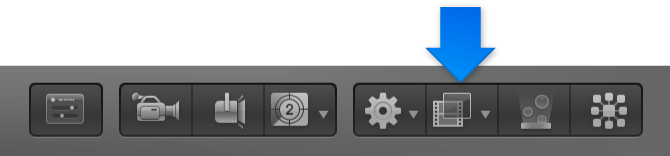
Apply and remove filters

Filters are applied to image layers (still images, video clips, shapes, and so on) or groups in the Canvas, Layers list, or Timeline. An applied filter appears in the Layers list nested underneath its target layer or group. When applied to a group, a filter affects all layers inside the group.

Important: Some filters can cause a group to be rasterized. When a group is rasterized, it’s converted into a bitmap image. In 2D groups, the application of any filter causes rasterization. In 3D groups, the application of specific filters causes rasterization. For more information on rasterization, see Filters and rasterization.

Apply a filter

Do one of the following:

The filter is applied to an image layer or to a group.

Note: Although you can apply a filter from the Library to another effects object in the Layers list (a behavior or another filter), the filter affects the parent image layer (or all layers in a group, if the filter was applied to a group), not the effects object.
Apply multiple filters to a layer

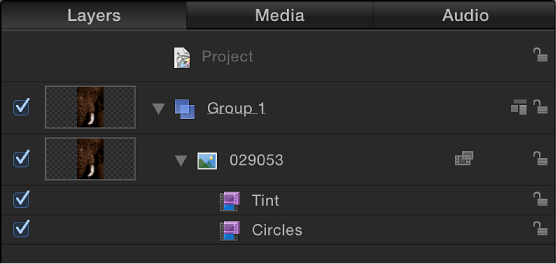
When you apply multiple filters to a layer, they have a cumulative effect. In the Layers list and Timeline, multiple filters appear nested under the layer or group they’re applied to.

Layers list showing filters applied to an object

Do one of the following:

The filters are applied to the image layer in the order they’re selected. For example, if you select Echo, Brightness, and Bevel, in that order, then apply them to a layer, their stacking order in the Layers list is Bevel above Brightness above Echo. The stacking order of filters determines the result of the composite effect.

Remove a filter from the Layers list or Timeline

The filter is removed from the project.

Remove a filter from the Filters Inspector

Apply a filter to a cropped image

In Motion, cropping is always applied after a filter is applied. To apply a crop before a filter, do one of the following:

For more information about cropping, see Crop a layer.

See also
Adjust filters overview