
Animate a filter parameter using a Parameter behavior
In the Layers list, Timeline, or Canvas, select an applied filter.
In the Filters Inspector, do one of the following:
Place the pointer over the right side of a parameter row until the Animation pop-up menu appears (a downward arrow), then click the menu, choose Add Parameter Behavior, and choose a behavior from the submenu.
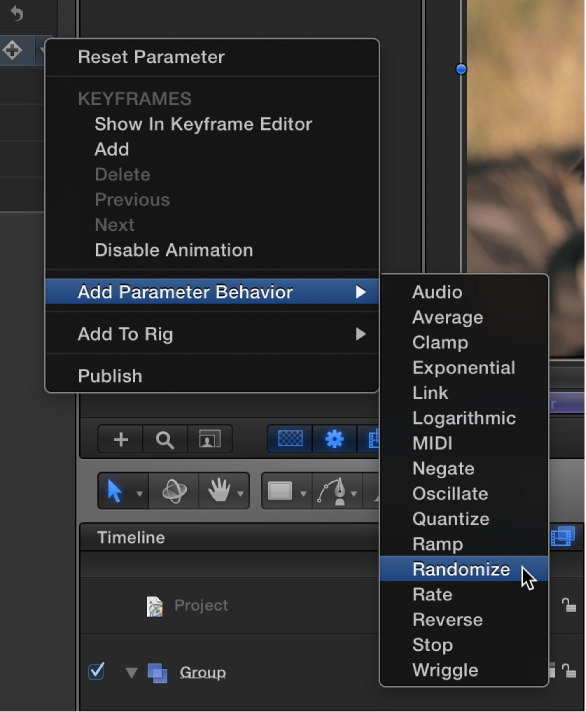
Control-click a parameter name, choose Add Parameter Behavior from the shortcut menu, then choose a behavior from the submenu.
A behavior icon (a gear) appears in the parameter row, and the Behaviors Inspector opens.

In the Behaviors Inspector, adjust the parameters of the newly applied Parameter behavior.
Click the Play button (or press the Space bar) to see the results.