
Adjust text margins without scaling the text
When you add paragraph-style text with adjustable margins (or import a text file from another application) you can resize the margins of the text-entry field in the Canvas without affecting the scale of the text. (For information about adding paragraph-style text with margins, see Add text.)
With the Text tool selected, Layout Method set to Paragraph in the Layout pane, and a text layer selected, do one of the following:
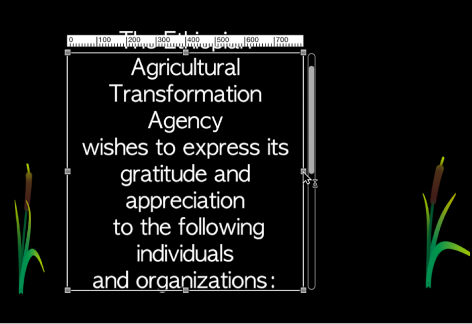
In the Canvas, drag a text-entry field’s onscreen scale handle.
Note: Do not use the Select/Transform tool to resize text margins. When you exit text-entry mode (by pressing Esc or selecting a tool from the toolbar), a standard object bounding box appears around the text. If you resize standard a text bounding box (by dragging one of its scale handles), the text is resized, not just the width of the bounding box.
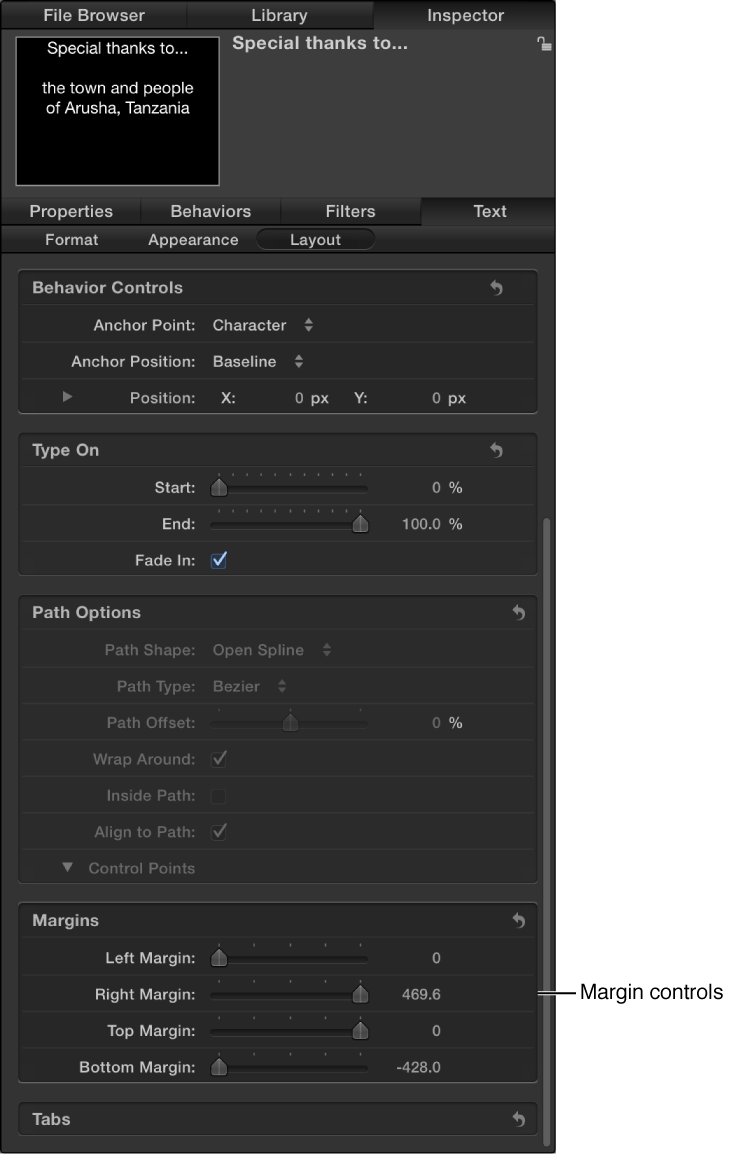
In the Layout pane of the Text Inspector, adjust the Margins controls.
Note: When text is deleted from a paragraph, the paragraph margins remain in their original locations.