
Kern text characters
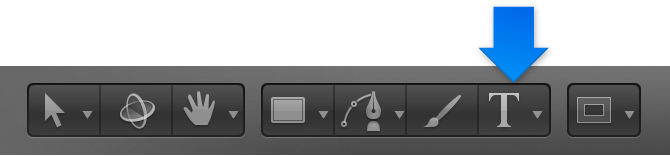
In the toolbar, click the Text tool (or press T).
In the Canvas, position the insertion point (click the mouse button) between the characters to kern, then do one of the following:
In the Format pane of the Text Inspector, drag the Kerning slider or adjacent value slider to set a kerning value.
Press Option–Command–Right Bracket (]) to increase the space between characters by one-pixel increments.

Press Option–Command–Left Bracket ([) to reduce the space between characters by one-pixel increments.