Use the parameter controls in the Outline, Glow, and Drop Shadow areas of the Appearance pane of the Text Inspector to add a text outline, glow, or drop shadow effect to text.
Select text in the Canvas, Layers list, or Timeline.
In the Text Inspector, click Appearance to open the Appearance pane.
In the Outline controls, select the Outline checkbox.
When selected, the Outline checkbox turns blue and the Outline controls become available. A red default outline with a width of one point is added to the selected text in the Canvas.

Tip: Deselect the Face checkbox in the Appearance pane to display a text outline with no fill.
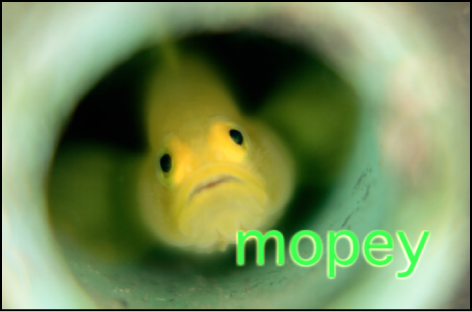
Select the text in the Canvas, Layers list, or Timeline.
In the Text Inspector, click Appearance to open the Appearance pane.
In the Glow controls, select the Glow activation checkbox.
When selected, the Glow checkbox turns blue and the Glow controls become available. A default yellow glow (with Scale and Opacity set to 100%, and Radius set to 0) is applied to the selected text in the Canvas.

Tip: Deselect the Face parameter activation checkbox (and other active parameters) to display only the text glow.
Select text in the Canvas, Layers list, or Timeline.
In the Text Inspector, click Appearance to open the Appearance pane.
In the Drop Shadow controls, select the Drop Shadow checkbox.
When selected, the Drop Shadow checkbox turns blue, and the Glow controls become available. A default black drop shadow is applied to the text.