Modify text opacity

There are several ways to change the opacity of text:

Set text opacity in the Properties Inspector

  1. Select text in the Canvas, Layers list, or Timeline.

  2. Open the Properties Inspector.

  3. In the Blending controls, drag the Opacity slider or enter an opacity value in the field.

    The Opacity parameter in the HUD is also updated.

Set text opacity in the Appearance pane of the Text Inspector

  1. Select text in the Canvas, Layers list, or Timeline.

  2. Open the Appearance pane of the Text Inspector.

  3. In the Face controls, drag the Opacity slider or enter an opacity value in the field.

Set text opacity in the HUD

  1. Select the text in the Canvas, Layers list, or Timeline.

  2. Press F7 or D to display the HUD.

  3. Drag the Opacity slider.

    Text opacity is updated as you drag the slider.
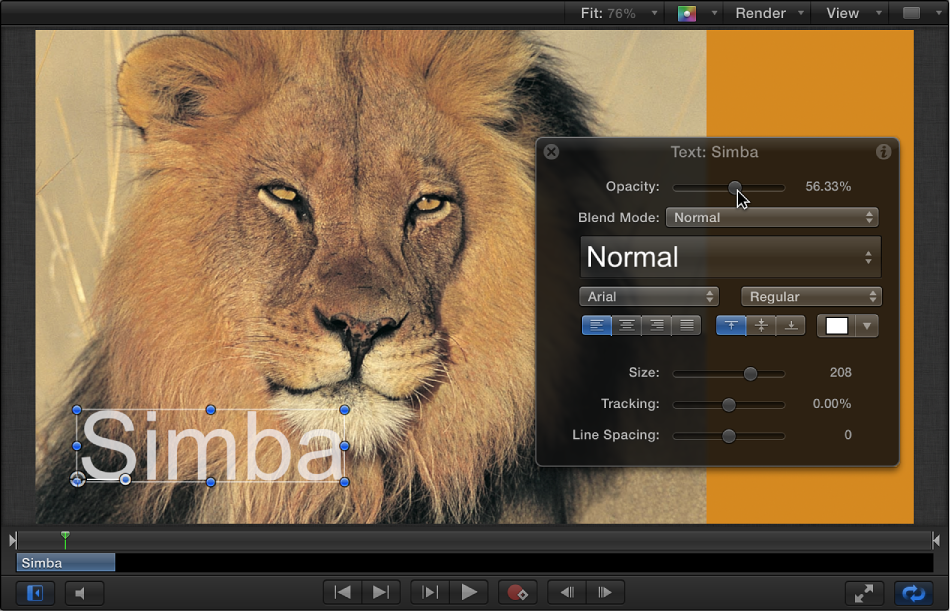
    Canvas and HUD showing text object's opacity at 56%

    The Opacity parameter in the Properties Inspector (not in the Text Appearance pane) is also updated.